Employee: Employee | Employee Search

Use the Employee Search to aid in navigation through the RPO system.
The tab provides a list of employees to which the user has access based on the Security User Role.

The employee list can be filtered and sorted as needed.
Working with the Employee Search
The upper section of the tab contains several fields to sort and filter the employees displayed in the lower section of the tab.

Sort : Displays the employees in the order specified by the sort. Use the Drop List to select the desired Sort, then click the Search Button.
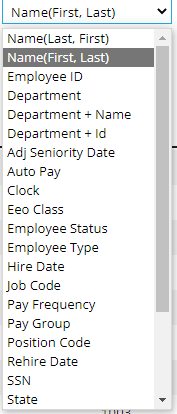
If the Sort references a field not included in the initial display, the field is added to the left side of the display.
In our example, the Sort is Hire Date. Hire Date is not part of the initial display so is aded to the left side of the display.

Filter : Use the Drop List to include employees who meet the criteria of the chosen filter.
Click the Search Button to update the display based on the filter.
Filters can vary from one company to the next. They are found in RPD in the Emp Filters option of the Misc tab under Company Setup.
Department : The contents of this Drop List are based on the levels found on the Departments Tab in Company > Departments & Labor tab. There can be up to five options in this area. Each option uses the name of the level. If a company has multiple levels, there will be multiple levels displayed.

Each level has a Drop List of the options for the particular level.
Select an entry and click the Search Button.
Name : Type a name or part of a name then click the Search button. Employees with names matching the entry will be displayed.
Emp ID : Enter a series of numbers or letters then click the Search button. Employees with Emp Ids matching the entry will be displayed.
You can use the Department option in conjunction with the Filter option to make the lookup more specific.
You can use the Name and Department options in conjunction with the Filter option to make the lookup more specific.
You can use the Emp ID and Department options in conjunction with the Filter option to make the lookup more specific.
Navigate to an employee
Select the desired employee from the list.

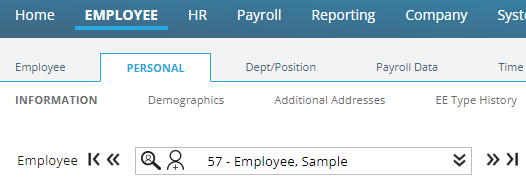
Clicking on selected employee will take you to the Information Tab in the Personal Section of Employee.
Links
On the right of the screen are three Link options that take you to the item to which it is linked.

Takes the user to the employee's Time Off Tab.

Takes the user to the employee's Rate Tab.

Takes the user to the employee's Pay History tab.
Hovering over the Link Icon with the mouse will display the Link's destination.