Employee: Dept/Position | Future Changes
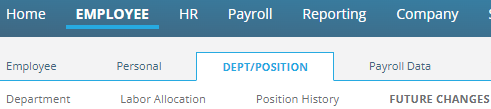
The Future Chages Tab is located under Dept/Position under the Employee Module.
Typically, changes to employee data are effective immediately. Future Changes refers to options in the system that allow the entry of certain employee changes today that are effective in the future.
For example: an employee resigns with a resignation date two weeks in the future. If you change their employee status to T for Term, they are considered terminated immediately by the system. Using the Future Changes options, you can change their employee status but assign an effective date of two weeks in the future. Until that future date arrives, their employee status remains A for active. On the effective date, the status automatically becomes terminated.
This feature is extremely helpful to the departments that handles employee maintenance as it eliminates holding and entering certain changes until their effective date.
There are two options in the system that generate Future Change records.
1: Change Address function: This is found in the Address section of the Employee Demographics tab. Initiate the future address change routine by clicking the field called Change Address .
This activates the Change Address function.
2: When changing the value in the Emp Status field to a Terminated status, the "Items to End" function is activated.
When rehiring a terminated employee, the Rehire Employee function is displayed.
Information regarding use of the "Change Address" and "Items to End" and "Rehire Employee" functions can be found in the Solution Article titled Employee: Personal | Demographics
click here to view.
Once a Future Change entry has been created, the field associated with the change is greyed out
Example of Future Changes in use

We have clicked the Change Address function.
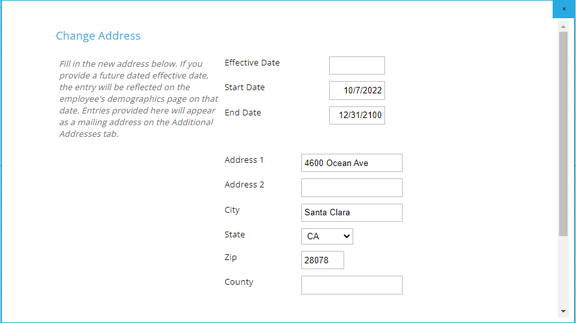
The Chan ge Address function opens, displaying the current values for the fields in the Address section.
The needed changes are entered. An Effective Date is entered, and the Save Button is selected.
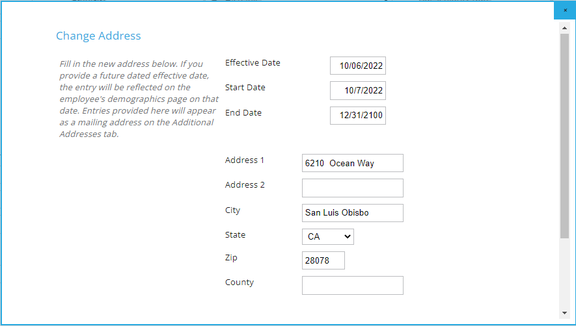
Once a Future Change entry has been created, the field(s) associated with the change is greyed out

At the same time, an entry is added to the Future Changes tab reflecting the field, effective date of the change, the new value for the field, who requested the change and when.

Manually managing Future Changes
In cases where the Future Changes records were created in error. the Future Change record(s) can be manually deleted from the employee's Future Changes Tab. In these cases, the user should
1: Note the change on the Future Change on the Future Change tab
2: Delete the Future Change record.
3: Go to the Demographics tab to ensure the field contains the correct value from the change.
In cases where the Future Change records contain incorrect values, you cannot change them in the Future Changes record.
You must delete the erroneous record then recreate them.