Company Setup: Work Comp
The Work Comp tab is used to house data related to the Workers Comp codes used by the clients.
This includes the codes and the rate information for each code.
As Workers Comp policies are date driven, this tab typically needs to be updated each year when the policies are renewed.
Company Level Setup
Add a new Worker Comp Code by clicking the New (*) button at the top right of the Workers Comp tab.
Enter the code in the "Enter new workers comp code" Dialogue box. Click Ok.

Click OK. This will take you to the Edit Workers Comp Code sub tab.
Edit Workers Comp Code Sub Tab

Description : Enter the Description of the Worker Comp code.
Advanced Option section : Unless there is reason to consider Secondary Workers Comp codes, ignore this section.
If Secondary Codes are applicable, see the section at the end of this article called
" Using the Secondary Code in Advanced Options on the Edit Workers Comp Code Sub Tab"
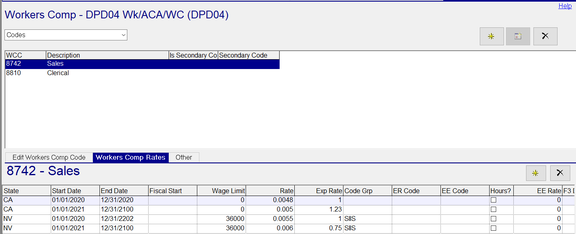
Next, select the Worker Comp Rates sub tab. Click the new (*) button at the far right of the Workers Comp Rates sub tab.
A new row will be added to the screen.

Due to size limitation, there are a number of fields in the Workers Comp Rate grid not shown in the above snip. They are, however, described below. Use the Arrows at the bottom of the Sub Tab to move left and/or right.

Populate the fields in the new row as appropriate. Not all fields are required.
| Field Name | Information |
|---|---|
| State | Enter the two-digit postal code for the state (in CAPS). If the Worker Comp code is used by multiple states, you must create a line for each state associated with the code. |
| Start Date | The date this Worker Comp Rate goes into effect. |
| End Date | The date this Workers Comp rate end. |
| Fiscal Start (optional) | The beginning date of the client's fiscal year. |
| Wage Limit (optional) | Enter the dollar value when there is a limit to the amount of earnings considered for Workers Comp calculations. Wage limits must be in place at the beginning of the plan year (as defined by Start Date or Fiscal Start) |
| Rate | The Workers Comp rate for this code provided by the state. |
| Exp Rate | if the client has a modification factor, enter it here. Otherwise, enter 1.0. |
| Code Grp (optional) | If Workers Comp calculations are based on a specific group of earnings or earnings/deductions, enter it here. |
| ER Code (Optional - For Washington L&I only.) | Enter the employer memo earnings code. |
| EE Code (Optional - For Washington L&I only.) | Enter the deduction code if WA L&I is being withheld from the employee. |
| Hours? (optional) | Is Workers Comp calculated based on Hours worked? |
| EE Rate (Optional - For Washington L&I only.) | Enter the rate for the employee deduction. |
| F3 Desc/Factor 3 >F7 Desc/Factor 7 (Optional - Informational Fields Only) | For each of these column pairs, enter a Description and the associated factor. Used for states having additional Rate Modifiers for Workers Comp. Otherwise, leave the Descriptions blank and the rates at zero. |
| Impound? (optional) | Check this box if you wish to impound the calculated Workers Comp premiums. |
| Default? (optional) | When there is no SUI code, use the default SITW code instead. |
| OT Premium Subject? (optional) | Most states calculate Workers Comp excluding the premium portion of overtime. In a case of Overtime at 1.50 of the employee's rate, the calculation will be based on the straight time portion of the earnings (rate X 1.0). Check this box if the overtime premium is subject to Workers Comp calculations. |
| By Pd End? (optional) | Is the Workers Comp premium based on the period end date and not the check date? |
Other Sub Tab
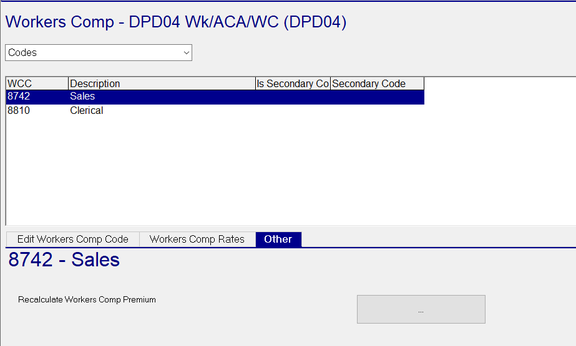
The "Recalculate Workers Comp Premium" function on this subtab is currently not functional.
It will be included in a future ReadyPay release.
Using the Secondary Code in Advanced Options on the Edit Workers Comp Code Sub Tab
Overview
Some states' Workers Comp policies offer secondary Workers Comp codes . Known as Second Injury Funds, they were designed to encourage employers to hire employees with disabilities and pre-existing conditions by offering cost relief should the employee experience an injury that aggravates the existing condition. For example, an employee with prior back surgery, diabetes, or carpal tunnel syndrome may pose greater risk for an additional injury than an employee who has no such condition.
Setup
Add the Secondary Workers Comp code using the steps described above. Click the box called "Is Secondary Code".
Enter the Workers Comp rates for the Secondary code using the steps described above.
Each secondary code is related to another Workers Comp code. Select that code and go to Advanced Options,
DO NOT SELECT "IS SECONDARY CODE".
Select the appropriate Secondary code from the Drop-List in the Secondary Code field.
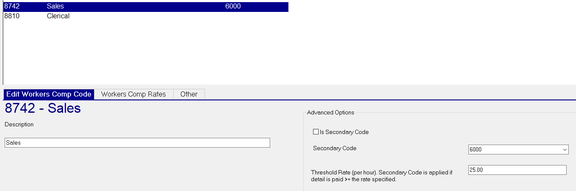
Enter a Rate in the "Threshold Rate (per hour) Secondary Code is applied if detail is paid >= the rate specified". In our example, the rate entered on the primary Workers Comp code is $25.00.
Assume we have two employees set up with Workers Comp code 8742.
Employee 1 earns $20.00 per hour, the Workers Comp premium is calculated using the rates associated with the company level code of 8742 for the active unemployment state of the employee. (Employee Taxes tab)
Employee 2 earns $26.00 per hour. As their rate is greater than $25.00, the Workers Comp premium is calculated using the Secondary Workers Comp code rate for the hours paid at $26.00 to code 8742. If the employee is paid to another Workers Comp code or is paid at an hourly rate less than $26.00 per hour, the secondary rate is not applied and the premium is calculated using code 8742.
For more information on setting up and working with Workers Comp,
click here.
For information on setting up and working with Washington L&I,
click here.