Company Setup: Positions
Use the Positions tab to create a list of Company Positions that can be assigned to employees for payroll and reporting purposes. Using Positions is optional and is not necessary for payroll processing.
Adding New Positions
Click the New (*) Button.
The "Enter new position code" Dialogue Box is displayed.
Enter a code for the new position.

Click OK.
The cursor is moved to the Title field on the Edit Position Sub Tab.
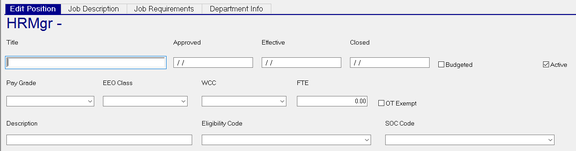
Edit Position Sub Tab
| Field Name | Information |
|---|---|
| Title | Title for the position. |
| Approved | Date the position was approved to be filled |
| Effective | Effective Date for the position |
| Closed | Date Position is closed (ended) |
| Budgeted | Position is budgeted (Check for Yes) |
| Active | Field is checked when a new position is added. Uncheck to deactivate. |
| Pay Grade | Use the Drop List to assign a Pay Grade to the position |
| EEO Class | Use the Drop List to assign the EEO Class of the position. |
| WCC | Use the Drop List to assign the Worker Comp Code for the position. |
| FTE | Enter a number that represents how much of a Full Time Equivalent someone in the position represents. |
| OT Exempt | Is position Overtime exempt |
| Description | Brief description of the position. |
| Eligibility Code | Future Use |
| SOC Code | Use the provide Drop List to assign the appropriate SOC (Standard Occupational Classification) Code |
Job Description Sub Tab
Use this sub tab to enter a free form Job Description for the position.

There is no spell checker or text formatting options available.
The field allows for up to 7000 characters.
Job Requirements Sub Tab
Use this sub tab to enter free form Job Requirements for the position.
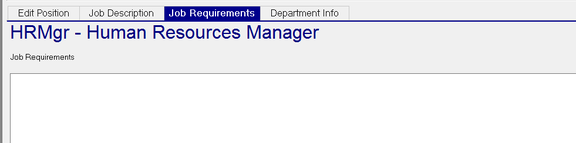
There is no spell checker or text formatting options available.
The field allows for up to 7000 characters.
Department Info Sub Tab
Use this tab to associate the position to a cost center within the company.
Dependent on the settings of the Departments Tab in Company Setup, there can be up to five fields to set.
Example of one level
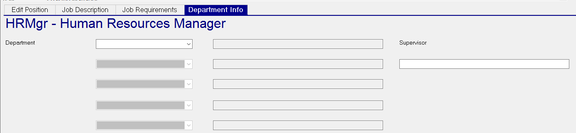
Example of three levels
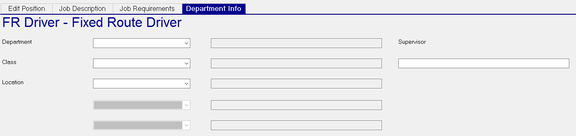
Use the Drop List for each level to set a value.
Supervisor : Manually enter the name of the Supervisor