Company Setup: Payroll Groups
Payroll Groups are used to identify employees as members of a group. That group can then be used to associate the employees with certain functions in RPD and RPO. There is no limit to the number of Payroll Groups setup on a company.
Employees are automatically added to any Payroll Group where they meet the group's criteria.
Payroll Groups can be applied to the following areas of the system:
Company Auto Pays
Company Agencies
Calendar Scheduler Setup
Setting up Payroll Groups
Click the New(*) Button.
The "Enter label for payroll group" Dialogue Box is displayed'
Enter a brief code for the Payroll Group. We will use Hourly for our sample Payroll Group. Click OK.

The cursor is moved to the Description Field of the Details Sub Tab.
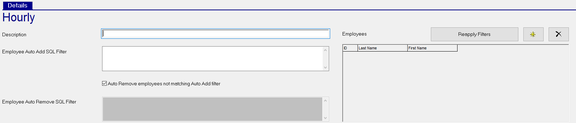
| Field Name | Information |
|---|---|
| Description | Enter the description of the Payroll Group. |
| Employee Auto Add SQL Filter | Enter the SQL that will automatically add any employees meeting the Filter statement to the Payroll Group |
| Auto Remove employees not matching Auto Add filter | Check to automatically remove an employee from the Payroll Group if they no longer meet the filter requirement. |
| Employee Auto Remove SQL Filter | This field becomes available only when the Auto Remove employees not matching Auto Add filter. It is populated with a SQL statement that is logically the opposite of the Auto Add SQL. Onluy use this field when the criteria to remove an employee from the Payroll Group is different from the Employee Auto Add SQL Filter. For example: When an employee terminates, they are immediately removed from an Active Employee Payroll Group. If you need a newly termed employee to remain in this group for a timeframe after their termination, a SQL can be adding stipulating the term date is less than the days in the timeframe prior to removal. |
Reapply Filters Section
No employees are listed in this area until the Payroll Group filter is applied.
Once the Payroll Group filter is deemed free of errors, use the Reapply Filters option to populate the Employee List.

Common Payroll Group Setups
Active Employees
Includes all Active Employees. This group is most commonly used in Payroll to ensure only active employees have Payroll Entry records. This minimizes the potential for paying termed employees.
Auto Add SQL
EInfo.empStatus IN ( SELECT status FROM CEmpStatus WHERE co=EInfo.co AND statusType='A')
Hourly Employees
Includes any active employee with an AutoPay setting of Hours.
Auto Add SQL
EInfo.empStatus IN ( SELECT status FROM CEmpStatus WHERE co=EInfo.co AND statusType='A') and einfo.autopay = 'Hours'
Specific Department Employees
Includes any active employees from a specific department (cc1 of 10 in this example)
Auto Add SQL
EInfo.empStatus IN ( SELECT status FROM CEmpStatus WHERE co=EInfo.co AND statusType='A') and einfo.cc1 = '10'
Termed Employees
Includes only terminated employees
Auto Add SQL
EInfo.empStatus IN ( SELECT status FROM CEmpStatus WHERE co=EInfo.co AND statusType='T')
Additional Filtering Options
Most standard SQL commands will work in the SQL Filter fields.
Not Equal to: Using the <> option , the Payroll Group includes any active employee not in cc1 of 10
EInfo.empStatus IN ( SELECT status FROM CEmpStatus WHERE co=EInfo.co AND statusType='A') and einfo.cc1 <> '10'
In: Use the In option to provide a list of items to include in the Payroll Group. In our sample, the Payroll Group includes any active employee with a cc1 value of 10. 20 or 30.
EInfo.empStatus IN ( SELECT status FROM CEmpStatus WHERE co=EInfo.co AND statusType='A') and einfo.cc1 in ('10', '20', '30')
Manually Created Payroll Groups
There may be cases where the employees to include in a Payroll Group are random and cannot be identified by SQL.
If so, create a Payroll Group with no Auto Add or Auto Remove SQL Filters.
There are New and Delete Buttons next to the Reapply Filters Button
Click the New(*) button to manually add the appropriate employees.
A Select Employee Dialogue Box is displayed,
The Dialogue Box provides a Drop List of all employees in the company.

Scroll through the list and select an employee to include in the Payroll Group. Repeat as necessary.
Use the Delete (X) to remove employees from the Payroll Group as necessary.
Highlight the employee to delete from the listed employees and click the Delete (X) button.
Testing your Payroll Group Setup
Once you have completed the Add SQL filter and the Auto Remove SQL Filter (if applicable), save the record.
If there are errors in the SQL Filters, the following message is displayed.

Determine and correct the cause of the error, then save the record.
Once saved, click the Reapply Filters button.
A list of employees meeting the SQL Filter will be displayed.
Review the list to ensure the appropriate employees are included.