Company Setup: Paycheck Attributes
Each paycheck has a Paycheck Attribute associated with it. A "regular" paycheck is typically the one that an employee will receive each payroll. These paychecks will have "regular" taxation, deductions and direct deposits. The "Regular" paychecks have Paycheck Attributes with no overrides.
Paycheck Attributes can be used when changes are needed to how the employee's check is calculated. The Paycheck Attribute can affect the taxation, earnings and/or deductions (including direct deposits) of individual pay checks. Additionally, client specific Paycheck Attributes can be created for companies that frequently issue pay checks other than the "Regular" paycheck. An example would be monthly Commission checks for a weekly payroll. These checks can be taxed monthly instead of the weekly and may have no scheduled deductions withheld. his is done using Check Attributes.
Company level Paycheck Attributes are also known as Paycheck Types.
On Board Paycheck Attributes
ReadyPay has a group of predefined Paycheck Attributes that are used in specific situations during the payroll processing.
The following Paycheck Attribute types are included in ReadyPay. These Paycheck Attributes have specific purposes in the software and should NOT be altered.
| Field Name | Information |
|---|---|
| Reg | Regular | No overrides are applied to any paycheck assigned this Attribute |
| Rev | When a paycheck in payroll history is voided, the system creates an entry of the check with a Paycheck Attribute of Rev. Coding in the system tells the software how to handle paycheck entries identified as Rev. No action is needed by the user. |
| Nocalc | Payroll entries with a Paycheck Attribute of Nocalc are used to make adjustments to taxable wages, capped and employee taxes |
| Manual | Paychecks entered via the Check Calculator are assigned a Paycheck Attribute of Manual. Coding in the system tells the software how to handle paycheck entries identified as Manual. No action is needed by the user. |
3Pty : Paycheck entries to record Third Party Sick Pay are handled using the 3Pty Check Attribute. ReadyPay will add the 3Pty Check Attribute to a company with the first use of the 3rd Party Sick Pay Wizard. Do noy manually create a 3Pty Paycheck Attribute.
Adding a new Company Level Paycheck Attribute
Click the New (*) Button.
The "Enter id for new pay type" Dialogue Box will be displayed.
Enter a short descriptive code for the Check Attribute.
We will use MoComm for our Monthly Commission checks

The cursor moves to the Edit Pay Type Sub Tab
Edit Pay Type Sub Tab
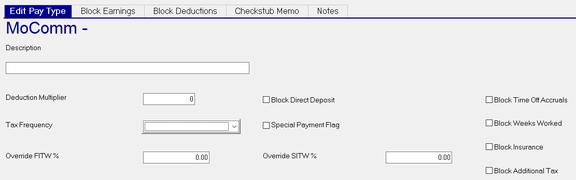
| Field Name | Information |
|---|---|
| Description | Enter a full description of the Paycheck Attribute |
| Deduction Multiplier | Enter a number if deductions should be doubled (or tripled up). Used with paychecks where employee is being paid for multiple pay periods on one check. Assume a weekly employee is being paid two weeks' vacation on one check. An entry of 2 would cause scheduled deductions to be taken twice. This option is rarely used. |
| Tax Frequency | Use the Drop List to override the taxation of checks using this paycheck attribute. Only choose the single digit Tax Codes. Our MoComm check is monthly so we will select M. |
| Override FITW% | Enter a number for the percentage to withhold for Federal Income tax. Often. Bonus checks are often taxed at 28% Federal. |
| Block Direct Deposit | Blocks all employee Direct Deposits |
| Special Payment Flag | Works in conjunction with the Supplemental Tax options on the Employee Maintenance > Taxes Tab |
| Override SITW % | Enter a number for the percentage to withhold for State Income tax. |
| Block Time Off Accruals | Block the accruing of time off (if applicable) on this check |
| Block Weeks Worked | Blocks the accumulation of Weeks Worked on this check. |
| Block Insurance | Block deductions that are based on the Employee Maintenance > Insurance Tab. |
| Block Additional Tax | Blocks any additional tax amounts. These are stored in the Flat Amount field of the Taxes tab in Employee Maintenance. |
Block Earnings Sub Tab
Use this sub tab to control the inclusion/exclusion of scheduled employee earnings for this Paycheck Attribute. Scheduled employee earnings are found in Employee maintenance on the Earnings tab.
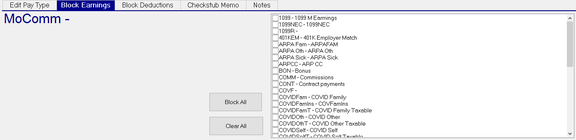
The Block Earnings Sub Tab displays a list of all earnings codes set up on the Earnings Tab in Company Maintenance.
If a code is not checked and the employee being paid has scheduled earnings for that code, those earnings will be included.
You can block specific codes by clicking the individual earnings codes.
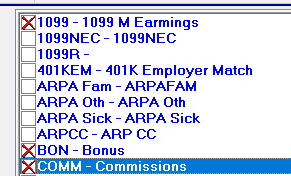
You can block all earnings codes by clicking the Block All button.
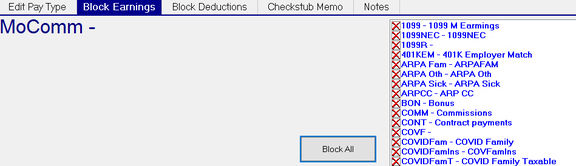
Use the Clear All button to clear your selection(s).
Block Deductions Sub Tab
Use this sub tab to control the inclusion/exclusion of scheduled employee deductions for this Paycheck Attribute. Scheduled employee deductions are found in Employee maintenance on the Deductions tab.
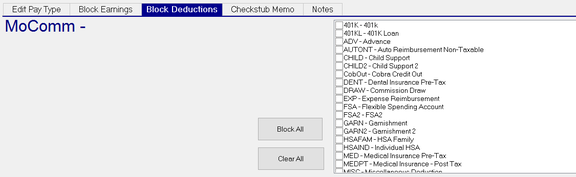
The Block Deductions Sub Tab displays a list of all earnings codes set up on the Deductions Tab in Company Maintenance.
If a code is not checked and the employee being paid has scheduled deductions for that code, those deductions will be included.
You can block specific codes by clicking the individual deduction codes.

You can block all deduction codes by clicking the Block All button.
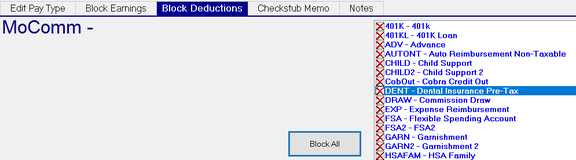
Use the Clear All button to clear your selection(s).
Checkstub Memo Sub Tab
Use this sub tab to add a check stub memo to any pay using this Paycheck Attribute.

The space on the screen makes it appear that you can enter a very large number of characters in the Memo. However, the actual space on the check stub is limited. The recommended MAXIMUM number of characters is 200.
Use the text field to enter your check stub memo. Spell checking and text formatting are not supported.
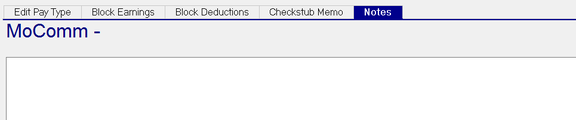
Notes Sub Tab
For internal use only. Use the Notes Sub Tab to enter a free form note regarding this particular Paycheck Attribute.
This note is not displayed on the check stub.