Company Setup: Misc | New Hire Wizard
Use of the New Hire Wizard function is optional.
Use it to customize the employee New Hire Wizard to the clients' needs.
Options are available to control table specific and field specific behavior when an employee is being new hired.
If you make no changes to the New Hire Wizard settings, the New Employee setup screen
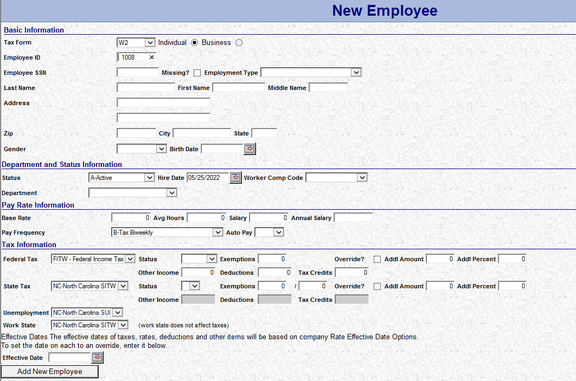
contains the following fields.
Note: The fields displayed in the New Hire Wizard are based on some parts of the company setup.
In the Department and Status Information, the entries in the row of fields correspond to the Names of the Levels setup on the Company Department tab.
One Level Example

Three Level Example

The fields for Work Comp Code is always present. If there are company level Work Comp codes in place, the Drop List is active. The size of the drop list expands if the Work Comp code setups are lengthy.
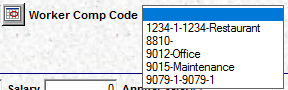
If no company level Work Comp codes are in place, the Drop List is not available.

The Tax Information section will very by client as it is based on the company level Tax setup. Sections for Federal, State and Unemployment Taxes are included in all companies.
Inclusion of these sections is based on the Tax Code start and end date in relation to the current check date.
For companies with Local Taxes, an additional section is included.

If any of the Local taxes have an associated PSD Code, a section for Local PSD Taxes is added above the Local Taxes Section.

Accessing the New Hire Wizard
In ReadyPay, the New Hire Wizard is accessed by selecting the "Add New Employees" icon on the Employee Menu.

You may also use the Add New Employee option in the Tree View.

In RPO, use the Add Employee Icon on the Home Page to access the New Hire Wizard.

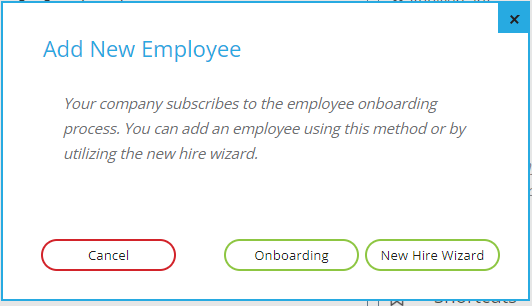
If the company subscribes to Onboarding, you have the option to select either the Onboarding or New Hire Wizard
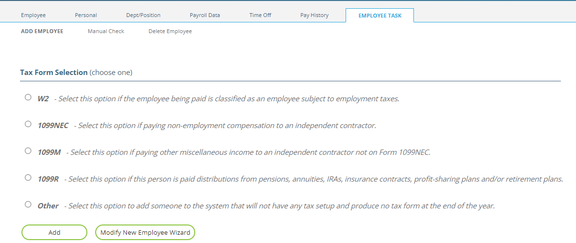
For non-Onboarding accounts, you are taken directly to the Add Employee Sub Tab. Use the Select Tax Form options to properly classify the employee for taxation purposes.
Note: On this tab, there is access to a Modify New Employee Wizard button. It works similarly to the function in Readypay.
Using the New Hire Wizard settings
The employee New Hire Wizard is controlled by the settings in two sub tabs.
These are the Info and Extra Employee Fields sub tabs.
This tab is unusual as the New (*), New Version (Calendar Icon) and Delete (X) Buttos are all inactive.
Info Sub Tab
This tab is used to include the following types of fields on the New Hire Wizard:
Deductions | Direct Deposits | Earnings (Fringe) | Time Off
The large box across from the Include Check Boxes in empty until a check box is selected. As the various check boxes are selected, the large box begins to be populated.
IMPORTANT NOTE: These options only affect the ReadyPay New Hire Wizard. They do not sync out to RPO.
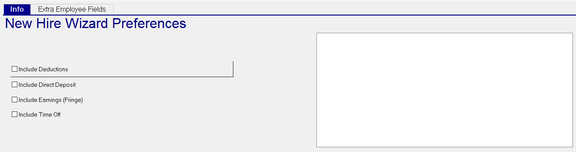
Include Deductions : Check this box to allow the inclusion of Deductions on the New Hire Wizard. The large box is then populated with every company level Deduction Code. Select the codes you want included in the New Hire Wizard.
In my example, I've selected D-401K and D-CHILD from the available options.

Save the record. Note on the New Hire Wizard, a section called Add? Deduction Code has been added. It includes the two codes selected in the New Hire Wizard Preferences.

Include Direct Deposits : Check this box to allow for the inclusion of Direct Deposits on the new Hire Wizard . The options for Direct Deposits are added to the field list directly below the Deductions.

Options are to allow for the setup of Checking Account, Savings Account or both.

Include Earnings
Check this box to allow for the inclusion of Earnings on the new Hire Wizard . The options for Earnings Deposits are added to the field list directly below the Deductions or Direct Deposit entries if both are in use.
This function allows for the setup of scheduled Earnings (Fringe Items). Only use if employees have schedule earnings.
Select the earnings codes typically associated with a scheduled payment (Use of Auto, Cell Phone Plan).
A section called Earnings (Fringe) that includes the selected earnings code(s) is added to the New Hire Wizard.

Include Time Off
Check this box to allow for the inclusion of Time Off setup entries on the New Hire Wizard, The codes are added to the top of the field as they are entered alphabetically by type: Accrual, Deductions, Direct Deposits, Earnings.
Select the Accrual codes you wish to add to the New Hire Wizard.
A section called Benefit Accruals (Time Off) is added and include the Time off codes selected in the wizard.