Company Setup: Insurance
Introduction
This article provides an overview of the setup and use of Company Level Insurance Plans in both ReadyPay Desktop and ReadyPay Online. For the remainder of the article, ReadyPay Desktop will be referred to as RPD and ReadyPay Online as RPO.
The details of this article are based on working in RPD. The process is generally the same in RPO.
Prior to setting up Company Level Insurance Plans
Ensure you have current documentation for any Insurance Plan being set up.
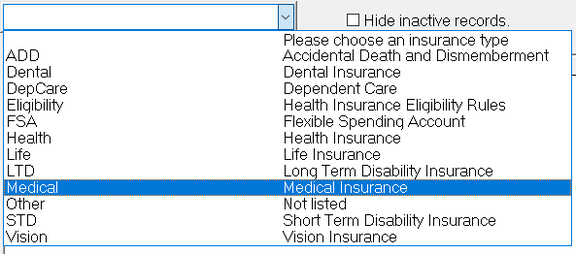


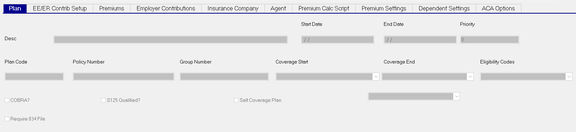


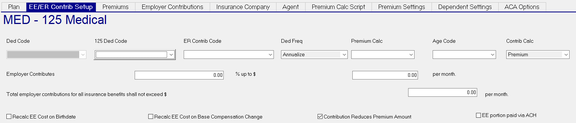


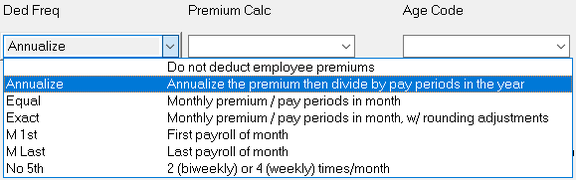
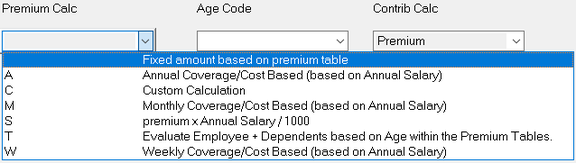


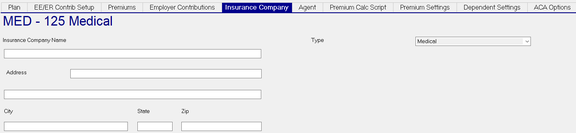
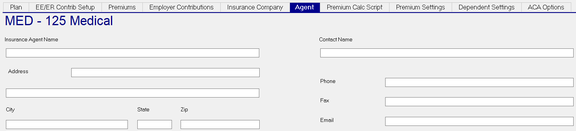

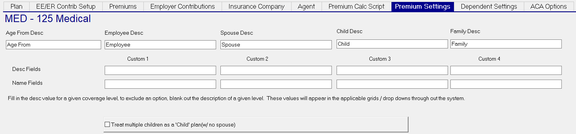

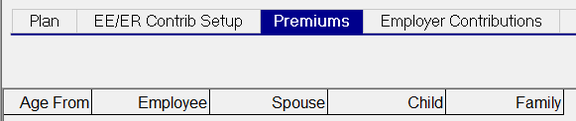




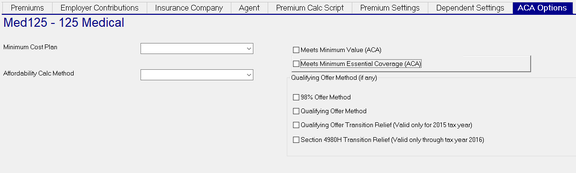



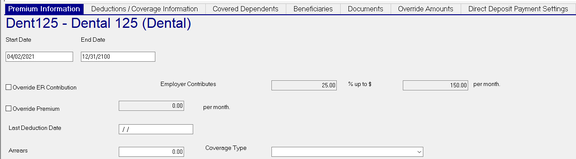

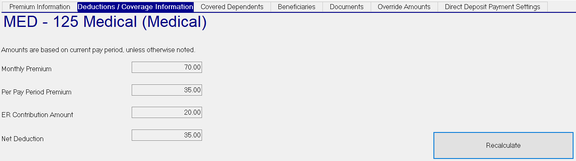





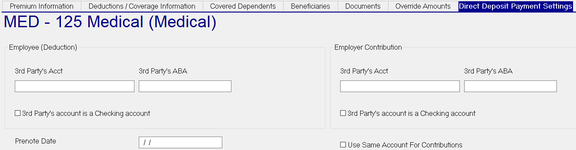
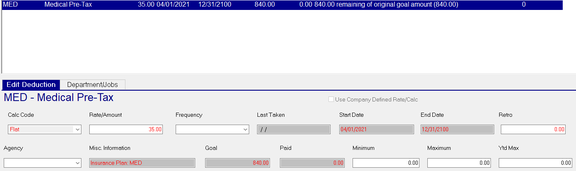
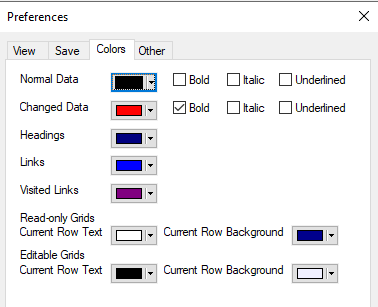
Review company level Deductions and Earnings codes to ensure all that will be used by the Insurance Plans are present. Add new Deduction and/or Earnings codes as needed . Review and confirm all Deduction and/or Earnings Types are correct. Company Level Insurance Plans Navigate to Company Setup > Insurance Select the Type of Insurance from the Drop List at the top left of the screen. Click the New(*) Button. Enter a code for the new Insurance Plan. (Our example use Code MED). Click OK. You are taken to the Sub Tab section of the tab. There are nine (9) standard Sub Tabs that make up the Company Level Insurance Tab. There is an additional tab present if the company has an active ACA service setup in Mater Company Setup > Services. Plan Sub Tab Field Explanation Desc : Description of the plan Start Date : Start Date of the plan End Date : End Date of the plan Priority : Default is zero (0). Use to set the order in which the plans are used when calculating employee Insurance Plan related deductions. If all plans have a priority of zero, they occur in plan code order. Plan Code : Code for the plan Policy Number : Policy Number for the plan Group Number : Group Number for the plan Coverage Start : Defines when the coverage of this plans starts for participating employees. Options are: Coverage End: Defines when the coverage of this plans ends for participating employees. Options are: Eligibility Codes : Provides a Drop List of all available Eligibility Codes. Only use the Eligibility Codes settings on Insurance Plans that do not have Open Enrollment. The options list for Eligibility Codes is found under the Eligibility Rules Sub Tab. Use the Drop List on the Eligibility Type field and choose Insurance. Cobra? : Available with Cobra offerings S125 Qualified : Check this box if deduction code associated with this plan is a 125 deduction type. Self Coverage Plan: Check for Self Coverage plan types. If checked, the Drop List to the right of the Self Coverage Plan field becomes active. Select the option best suited to the Self Coverage plan Require 834 File: Check if applicable In RPO, the Plan Sub Tab has an option called "Recalculate Employee Deductions" EE/ER Contrib Setup Sub Tab Field Explanation This Sub Tab is called EE/ER Contrib in RPO. Ded Code: If the "S125 Qualified" box on the Plan Sub Tab IS NOT checked, a Drop List of ALL non-125 Ded Type Deduction Codes is available. The 125 Ded Code field directly to the right is unavailable in this case. 125 Ded Code : If the "S125 Qualified" box on the Plan Sub Tab IS checked, a Drop List of all 125 Ded Type Deduction Codes is available. The Ded Code field directly to the left is unavailable in this case. ER Contrib Code : A Drop List of ALL Earnings Codes is provided. If the employer contributes to the cost of the employee insurance, select the appropriate code. Ded Freq : A Drop List of options to control the calculation of the frequency of Insurance Plan premium. Premium Calc: A Drop List of options to control the calculation of the Insurance Plan premium. Select Blank option if premiums are determined by use of Premiums and/or Employer Contributions sub tabs Select C to activate and use the Premium Calc Script Sub Tab Select T to use the options on the Dependent Settings Sub Tab Age Code : A Drop List of options to determine age in relation used to determine applicable premiums. Contrib Calc: A Drop List of options to control how premiums are calculated. Employer Contributes : Two fields used in conjunction with each other to control the Employer Contribution amount $ up to $ : (Optional) The percent the employer contributes for this plan. Works in relation to the adjacent "per month" field per month : (Optional) The maximum amount the employer contributes per month for this plan. Works in relation to the adjacent% up to $ field Total employer contributions for all insurance benefits shall not exceed $ per month field (Optional) The total amount the employer contributes across all insurance plans for the employee In RPO, the "Employer Contributes" fields are found in the Employer Contributions section of this Sub Tab. Recalc EE Cost on Birthdate : (Optional): Updates EE Cost (if necessary) on their birthday. Recalc EE Cost on Base Compensation Change : (Optional): Updates EE Cost if Base Pay is changed. Contribution Reduces Premium Amount : (Optional) Reduces the amount of the Employee Deduction by amount of Employer Contribution EE Portion paid via ACH : (Optional) If selected, the Direct Deposit Payment Settings Sub Tab becomes available on the Employee Maintenance > Insurance tab. See Employee Level Insurance Plan Setup section of this document for setup instructions. Premiums Sub Tab The Premiums Sub Tab is used to establish the employee contribution amounts (if any) for the insurance plan. The Sub Tab is called Premium Options in RPO. The Premiums Sub Tab is used to establish the employee contribution amounts for the insurance plan The default column headings on this sub tab are controlled by the settings in the Premium Settings sub tab. They can be adjusted to match the terminology used by the individual client. They are also used when defining the insurance coverage selection on the individual employee. Click the New (*) button to begin building the Premiums table. Note: The Field Names used below are the Default names for those fields. If you change them using the Premium Settings tab, they would be identified by those override names Age From : The Age that determines if the employee qualifies for the premium values entered in this row. Employee: Enter the employee contribution amount if the employee is set up for Employee only (Self) coverage. Create as many lines as needed to reflect the age tiers of the insurance plan. Spouse : Enter the employee contribution amount if the employee is set up for Spouse coverage. Child : Enter the employee contribution amount if the employee is set up for Employee/Child coverage. Family : Enter the employee contribution amount if the employee is set up for Family coverage. Employer Contributions Sub Tab The Employer Contributions Sub Tab is used to establish the employer contribution amounts (if any) for the insurance plan. The default column headings on this sub tab are controlled by the settings in the Premium Settings sub tab. They can be adjusted to match the terminology used by the individual client. They are also used when defining the insurance coverage selection on the individual employee. Click the New (*) button to begin building the Premiums table. Note: The Field Names used below are the Default names for those fields. If you change them using the Premium Settings tab, they would be identified by those override names Age From : The Age that determines if the employee qualifies for the premium values entered in this row. Employee: Enter the employer contribution amount if the employee is set up for Employee only (Self) coverage. Create as many lines as needed to reflect the age tiers of the insurance plan. Spouse : Enter the employer contribution amount if the employee is set up for Spouse coverage. Child : Enter the employer contribution amount if the employee is set up for Employee/Child coverage. Family : Enter the employer contribution amount if the employee is set up for Family coverage. Insurance Company Sub Tab (Optional) This tab stores information about the company that provides the Insurance Plan. Insurance Company Name : (Optional) Name of the Insurance Company providing this plan. Type : (Not Editable) Populated by the Type Value selected when the Insurance Plan was created. Address : (Optional) Address of the Insurance Company providing this plan. Additional Address field (unnamed): (Optional) Additional Address information (Suite, Unit Number, etc) of the Insurance Company providing this plan. City : (Optional) City of the address for the Insurance Company providing this plan. State : (Optional) State of the address for the Insurance Company providing this plan . Zip : (Optional) Zip code of the address for the Insurance Company providing this plan. Agent Sub Tab (Optional) This tab stores information about the agent associated with the Insurance Plan. Insurance Agent Name : (Optional) The complete name of the agent agency associated with the Insurance Plan. Contact Name : The name of the contact if Insurance Agent Name is an Agency Address : (Optional) The address of the agent associated with the Insurance Plan. Additional Address field (unnamed): (Optional) Additional Address information (Suite, Unit Number, etc) of the agent /agency associated with the Insurance Plan. City : (Optional) The city of the address for the agent /agency associated with the Insurance Plan. State : (Optional) The state of the address for the agent /agency associated with the Insurance Plan. Zip : (Optional) Zip code of the address for the agent/agency associated with the Insurance Plan. Phone : (Optional) Phone number for the agent/agency associated with the Insurance Plan. Fax : (Optional) Fax number for the agent/agency associated with the Insurance Plan. Email : (Optional) Email address for the agent/agency associated with the Insurance Plan. Premium Calc Script Sub Tab Allows the use of scripting for the calculation of Insurance Premiums. This Sub Tab is only active when the Premium Calc field on the EE/ER Contrib Setup Sub Tab is set to C (Custom Calculation). The scripting for this Sub Tab uses a specific format. The first line is the Function line. The entry is comprised of the word Function followed by the code of the Insurance Plan. In our example, we use Function MedCalc. After the Function command, enter your script. This uses the same scripting calls and functions as Calc Codes and the VB Scripting function found under Company Setup > Misc > Scripting. After the script entries is the returnValue call. The format is simply the name of the Function at the beginning of the Premium Calc Script followed by the equal sign and the returnValue entry. In our sample, this entry reads MedCalc = returnValue. The final entry in the Premium Calc Script is End Function. This indicates to the system that it is at the end of the script. This is similar to the End Sub function used with Calc Codes and VB Scripting. Function MedCalc dER = 0 eeInsHrs = GetTotalHours("InsHrs") dER = (eeInsHrs * 0.50) AddTransaction "E", "ERPINS", 0, dER MedCalc = returnValue End Function Premium Settings Use this tab to view, and if needed, override the default descriptions for the fields found on the Premiums and Employer Contributions Tabs. These fields represent the most common Insurance Plan Coverage types. If necessary, additional columns can be added using the Custom 1 through Custom 4 fields. This allows you to expand the columns of available fields on the Premiums and Employer Contributions Sub Tabs. The standard (except Age From) and any custom fields are available for selection in the Coverage Type on the Employee level Premium Information. There are five default columns. They are named Age From Desc, Employee Desc, Spouse Desc, Child Desc and Family Desc. These are displayed on the Premiums and Employer Contributions Sub Tabs To change the Descriptions , override the text field below the field name on the Premium Settings subtab as necessary. Note the changes to the "Age From" and "Spouse" Desc fields and the affect of those fields on the Premiums and Employer Contributions Sub Tabs. In cases when more than four Plan Coverage types are needed, they can be created using the Custom 1, Custom 2, Custom 3 and Custom 4 fields provided. Populating these Custom fields will expand the grids fund on the Premiums and Employer Contributions Sub Tabs. Dependent Settings Sub Tab This sub tab needs to be researched and documented ACA Options (optional) The ACA Options Sub Tab is only available for companies with an active ACA Service. Master Company Setup > Services. The ACA Service will turn on ACA Options Sub Tab on the Insurance pages. Minimum Cost Plan : If this is a minimum cost plan, select the plan code from the Drop List. Affordability Calc Method: Select the appropriate Affordability Method from the Drop List. Meets Minimum Value (ACA) : Check for plans meeting minimum value for CA. Meets Minimum Essential Coverage (ACA) : Check for plans meeting essential coverage for ACA reporting. Qualifying Offer Method (if any) : Unless specified on the company's ACA Setup page for all employees, select the applicable Qualifying Offer Method(s). This allows a company to have different groups of employees with different Qualifying Offer methods. For more information regarding the setup of ACA, use the following link to the ACA Setup Guide: ACA Setup Guide Employee Level Insurance Plan Setup To set up an employee to participate in an Insurance Plane, go to the Employee Maintenance > Insurance tab. Click the New (*) Button. In the Select Insurance Plan Dialogue Box, select the Insurance Plan you wish to setup from the provided Drop List. Click OK. The Insurance Plan will be added and you are taken to the Premium Information Sub Tab to complete the employee setup. There are seven Sub Tabs to be considered and possibly populated based on the employee in question. Premium Information Sub Tab Start Date : Start Date of the Employee Level Plan. System will autofill the current check date from the Payroll module. End Date : End Date of the Insurance Plan. Default is 12/31/2100. Override ER Contribution : Check to override ER Contribution setup on the Company Level Insurance Plan. If selected, data from the Override Amounts Sub Tab is displayed and active. If changes are made here, the Override Amounts Sub Tab is updated to reflect those changes Employer Contributes : Override to Employer Contribution amount from the Company level Plan. $ up to $ (amount) per month : Override to Employer Contribution amount per month limit from the Company level Plan. Override Premium : Check to override Monthly Employee Premium. Enter a monthly Premium amount. If changes are made on the Premium Information Sub Tab to the Employer Contributes, $ up to $ and Override Premium values, the Override Amounts Sub Tab is updated to reflect those changes as well. Last Deduction Date : System will update as deduction occur. Arrears : System will update if the entire deduction amount cannot be taken. Coverage Type : Use the Drop List to select the Coverage type for this Insurance Plan. Deductions / Coverage Information Sub Tab Displays information on Employee and Employer Contributions based on Company level Plan and / or Employee overrides Recalculate : Use to view new Employee and Employer Contributions after changes are made at the Company and / or Employee levels for this Insurance Plan. Covered Dependents Sub Tab Use this tab to add dependents who will be covered under this Insurance Plans. Before adding Dependents to an Insurance Plan, they must be added to the Dependents Tab in Employee Maintenance. On the Employee maintenance > Dependents Tab, use the Other Info Sub Tab to identify each Dependent by Category (Dependent, Beneficiary, etc.). Only those marked as Dependent can be chosen as Dependents on an Insurance Plan. Once Dependents are added on the Employee Maintenance >Dependents tab, they can now be added as Dependents on the Insurance Tab > Covered Dependents Sub Tab. Click the New (*) button and choose a Dependent from the Option Box. Note the Dependent in the above example called "the Wife" is not included as she is marked as a Beneficiary on the Employee Maintenance > Dependents Tab . As you add Dependents to each plan, the Plan Field at the top of the tab is updated to reflect the plan type based on the number of dependents added After adding Dependents, use the Recalculate Option on the Deductions / Coverage Information to update that information. Beneficiaries Sub Tab (Informational) Use this tab to identify Beneficiaries (if applicable) to this Insurance Plan. Click the New (*) button to add Beneficiaries. The Option Box will display any Dependent identified as a Beneficiary on the Employee Maintenance > Dependents Tab. Coverage Start : The Start Date of the Insurance Plan as established on the Company Level Insurance Plan. End Date : Default value is 12/31/2100. Override as necessary Name : Auto-filled when selecting the Beneficiary from the Employee Maintenance > Dependents Tab. Relationship : Auto-filled when selecting the Beneficiary from the Employee Maintenance > Dependents Tab. Type : Choose Type from available Drop List. Percentage : Enter the Percentage the Beneficiary will receive from the Insurance Plan payout. Documents Sub Tab Use this Sub Tab to add documents relevant to this Insurance Plan. Click the New (*) Button to add a new document. A Field Browser window will open. Navigate to the directory where the document is housed. Highlight the file and click Open. A new line is added to the Grid called Plan Name + 1. Additional Documents can be added, Naming will be Plan Name + 2, 3, etc. Notes : Use this field to enter free form notes regarding the attached document. Click the New (*) Button to display the Edit Noted Dialogue Box. Load/Update : Use this option to load an new version of the document previously selected when initially creating the Document record. View : Click to view the document itself associated with this record. Override Amounts Sub Tab Use this Sub Tab to control overrides to the Premium Amounts for this employee in this Insurance Plan. Data entered here will be used on the Premium Information Sub Tab if the Override ER Contribution Box on the Premium Information Tab is checked. Override ER Contribution : Check to override ER Contribution setup on the Company Level Insurance Plan. If selected, data from the Override Amounts Sub Tab is displayed and active. If changes are made here, the Premium Information Sub Tab is updated to reflect those changes Employer Contributes : Override to Employer Contribution amount from the Company level Plan. $ up to $ (amount) per month : Override to Employer Contribution amount per month limit from the Company level Plan. Override Premium : Check to override Monthly Employee Premium. Enter a monthly Premium amount. The system will automatically populate the value for the per year amount field. If changes are made on the Premium Information Sub Tab to the Employer Contributes, $ up to $ and Override Premium values, the Override Amounts Sub Tab is updated to reflect those changes as well. Conversely, changes made on the Override Amounts Sub Tab are reflectted on the Premium Information Sub tab Direct Deposit Payment Settings Use this Sub Tab to set up electronic payment of the Employee Deduction and / or Employer Contribution for this Insurance Plan. This Sub Tab is active ONLY if the "EE Portion paid via ACH Check Box" (Company Insurance Plan > EE/ER Contrib Setup Sub Tab) is selected on this Insurance Plan. This tab must be populated for ALL employees associated with this plan. THE DIR DEP-DED TRANSFER TYPE IS NOT REQUIRED TO USE THIS FEATURE Employee (Deduction) Section 3rd Part's Acct : Enter the account number to where the deduction should be paid. 3rd Party's ABA : Enter the ABA of the bank for the 3rd party Acct. 3rd Party's account is a Checking account : Check if this account is a checking account. Prenote Date : Leave blank to allow this item to follow the standard prenote settings for this company. For the entry to be live immediately, enter a date that is prior to the date that is defined by the Employee Prenote Days field on the Company Setup > Defaults Tab. Employee Insurance Deductions displayed on the Employee Maintenance > Deductions Tab To provide a complete picture of an employee's deduction setup, the Employee Maintenance > Deductions Tab displays any deductions that are setup on the Employee Maintenance > Insurance Tab. This is an informational display. These deductions are displayed using the "Changed Data" font color from Tools > Preferences > Colors. Changes to the Insurance deductions cannot be on the Employee Maintenance > Deductions Tab. Data entered on an Insurance deduction using this tab will not be saved. They must be maintained on the Employee Maintenance > Insurance Tab. Insurance deductions displayed on this tab will respect the Tab Level "Hide Inactive Deductions" Check Box