Company Setup: Earnings
The Company Setup > Earnings tab houses all the earnings codes for the company.
In order for an earnings code to be used in an employee's pay, it must first be setup on this tab.
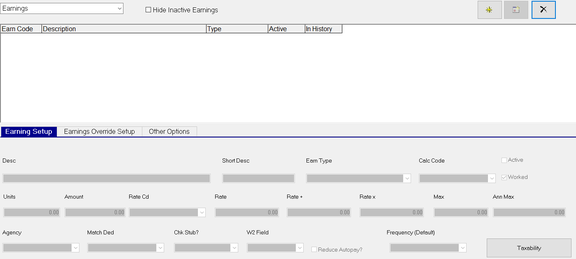
In the upper left of the tab, there is a Drop List option. Use this option to access the Earnings setup or the Calc Code Setup.

For information on the use of Code Groups, click here .
The page defaults to the Earnings option.
Hide inactive records

Use this option to hide any deduction code where the Active field is not checked.
The Active Check Box is located on the right of the Earning Setup Sub Tab.

The New, New Flavor and Delete Buttons are found in the upper right of the tab.

Use the New (*) Button to add a company level earnings.
The New Flavor Button (Calendar Icon) is not active on this tab.
Use the Delete (X) to remove a company level earnings.
Earnings can only be deleted if they are not in use currently or historically elsewhere in the system. Referential Integrity logic prevents deletion of in use earnings. When attempting to delete an earning already in use, you will receive an Object Error box. Click the Details to determine the reason the deletion cannot be done.

If the earnings can be deleted, the following Dialogue Box is displayed, Click the Yes button to complete the deletion.

Once an earning has been used in an employee's pay, it cannot be deleted.
Adding a new Company Level Earning
Click the New (*) Button.
The "Enter new earnings code" Dialogue Box is displayed.
Enter a code. Be brief.

Click OK. The cursor moves to the Desc field on the Earning Setup Sub Tab.
Earning Setup Sub Tab
Desc : Optional. Full description of the deduction
Short Desc : Optional. An abbreviated description of the deduction.
Note: On printed output, the system will display the earning code, description or short description dependent on available space on the document. Be sure all three items are clear identifiers of the earning.
Earn Type : Optional. Use the Drop List to assign an earnings type to the earnings. The majority of earnings are simple earnings that have no special taxation or other requirements. A number of earnings may need an Earn Type set. The list of Earn Types is extensive. Many are informational and used for reporting purposes.
For more information on Earn Types, click here .
| Field Name | Information |
|---|---|
| Calc Code | Optional. If applicable, select a Calc Code from the Drop List. If a Calc Code is selected, it will be included when the earning is added to the Earnings tab in Employee Maintenance > Earnings. |
| Active | All newly added company level earnings are active by default. Uncheck to deactivate the code, making it unavailable for selection. |
| Worked | Optional. Indicates this earning is for Worked hours. Paid Time off, Vacation, Jury Duty, etc are NOT Worked. |
| Units | Optional. Used with calculation of GTL and other specific earnings. As Units is typically employee specific, this is rarely used as a default value. If a Units value is entered, it will be included when the earning is added to the Earnings tab in Employee Maintenance > Earnings. |
| Amount | Optional. Enter an amount to be used with these earnings. If an Amount value is entered, it will be included when the earning is added to the Earnings tab in Employee Maintenance > Earnings. |
| Rate Cd | Optional. Select a Rate Code from the Drop List to be applied to these earnings. If a Rate Code is selected, it will be included when the earning is added to the Earnings tab in Employee Maintenance > Earnings. |
| Rate | Optional. Enter a Rate to be used with these earnings. If a rate is entered, it will be included when the earning is added to the Earnings tab in Employee Maintenance > Earnings. |
| Rate + | Optional. An entry in this field results in the earnings being paid the rate plus the amount entered. |
| Ex | Rate is 10.00. Rate + is 0.50. Rate to be paid is 10.50. |
| Rate X | Optional. An entry in this field results in the earnings being paid the rate times the amount entered. Typically used with Overtime, Double Time, Half Time, etc.) |
| Ex | Rate is 10.00. Rate X is 1.50. Rate to be paid is 15.00 |
| Max | Optional. Enter a value for the maximum amount these earnings must be when used in an employee's pay, If a Max value is entered, it will be included when the earning is added to the Earnings tab in Employee Maintenance > Earnings. |
| Ann Max | Optional. The maximum amount that can be earned within a calendar year. If an Ann Max value is entered, it will be included when the earning is added to the Earnings tab in Employee Maintenance > Earnings. |
| Agency | Optional. Assign an Agency payment to this deduction code using the provided Drop List. If an agency is selected, it will be included when the earning is added to the Earnings tab in Employee Maintenance > Earnings. |
| Match Ded | Optional. Use with earnings where they are added to the employee's pay for taxation purposes and an amount equal to the earnings is deleted. Commonly used with Cash Tips. taxable Fringe Benefits and GTL. Select the appropriate code from the Drop List to enable the matching deduction routine. |
Chk Stub? : Controls if an earning is displayed on the check stub or not.
W2 Field : Optional. Only populate in cases where you have earnings where the existing earn types do not meet your requirements.
Reduce Autopay? : Optional. Used mainly with earnings for paid time off. Works in conjunction with the Base Auto Pay field on the employee's Rates tab. On the employee, there must be a value in the Def Hours field AND the Base Auto Pay field must be set to either Hours or Salary.
Our employee is set to be paid auto paid 80 hours.


We enter 8 hours PTO in the Payroll Entry grid.
The results of using Reduce Autopay are shown below.

The hours paid remains 80 but the regular Hours is reduced by 8.00 to 72.00.
Frequency (Default) : Optional. Select the associated Frequency from the provided Drop List. If a frequency is selected, it will be included when the earning is added to the Earnings tab in Employee Maintenance > Earnings.
Taxability : Click the box to see the taxability of the earnings code. Most earnings codes have no tax overrides. Certain earnings types (GTL, Non Taxable, Mileage-NT, etc) have taxability that is controlled by the software.
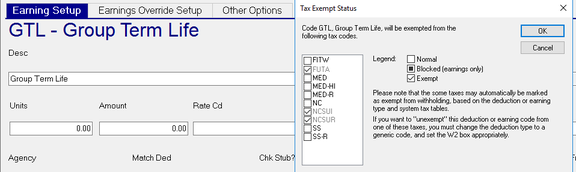
With earnings types that have taxability settings, the settings are automatically updated if new tax codes are added to the company.
The only time you should adjust the taxability settings is if you have earnings with taxability not handled by the existing earnings types. In these cases, use the options in the "Tax Exempt Status: box to control the taxability of the earnings.
When reviewing the earnings setup for a company, note the Taxability Box. If the taxability of the earnings code has been MANUALLY overridden, there will be an asterisk next to the word Taxability.

This does not happen when taxability is overridden by the Earnings Type.
Earnings Override Setup Sub Tab
Use the options on this Sub Tab to force the default values of the field onto the entry on the employee's earnings tab.
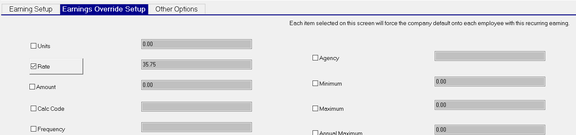
If there is a value in any of the fields on this Sub Tab, it comes from the Earnings Setup Sub Tab from the field with the same name. The values in these fields can only be changed from the Earnings Setup Sub Tab.
Use the check box to force the value onto the employee earnings.
Note in our sample that the Rate field is checked with a default value of 35.00.

When added to the Employee's Earnings Tab, the Rate field is set to 35.00 and cannot bechanged.
Other Options Sub Tab
This Sub Tab provides access to other features that can affect how the earnings code is handled.
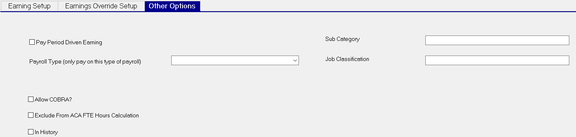
Pay Period Driven Deduction : Optional. Check if earnings is based on Period date instead of check date
Payroll Type (only pay on this type of payroll) : Optional. Earnings will only occur in the selected Payroll Type.
Allow COBRA? : Optional. Informational.
| Field Name | Information |
|---|---|
| Exclude From ACA FTE Hours Calculation | Functions as described |
| In History | This box is checked once the earnings code has been used in the payroll and recorded historically. |
| Sub Category | Optional. Free form field used to facilitate reporting and General Ledger. |
| Job Classification | Optional. Free form field used to facilitate reporting and General Ledger. |