Company Setup: Deductions
The Company Setup > Deductions tab houses all the deduction codes for the company.
In order for a deduction to be taken from an employee's pay, it must first be setup on this tab.
Deductions Tab
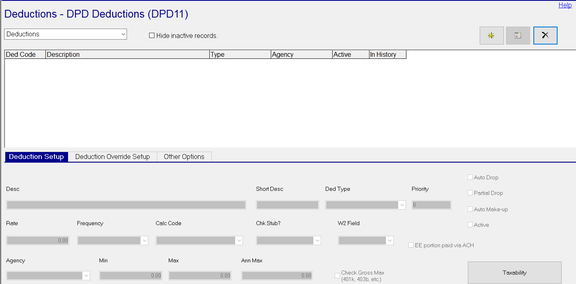
In the upper left of the tab, there is a Drop List option. Use this option to access the Deduction setup or the Calc Code Setup.

For information on the use of Code Groups, click here .
The page defaults to the Deductions option.
Hide inactive records

Use this option to hide any deduction code where the Active field is not checked.
The Active Check Box is located on the right of the Deduction Setup Sub Tab.

The New, New Flavor and Delete Buttons are found in the upper right of the tab.

Use the New (*) Button to add a company level deduction.
The New Flavor Button (Calendar Icon) is not active on this tab.
Use the Delete (X) to remove a company level deduction.
Deductions can only be deleted if they are not in use currently or historically elsewhere in the system. Referential Integrity logic prevents deletion of in use deductions. When attempting to delete a deduction already in use, you will receive an Object Error box. Click the Details to determine the reason the deletion cannot be done.

If the deduction can be deleted, the following Dialogue Box is displayed, Click the Yes button to complete the deletion.

Once a deduction has been used in an employee's pay, it cannot be deleted.
Adding a new Company Level Deduction
Click the New (*) Button.
The "Enter new deduction code" Dialogue Box is displayed.
Enter a code. Be brief.

Click OK. The cursor moves to the Desc field on the Deduction Setup Sub Tab.
Deduction Setup Sub Tab
Desc : Optional. Full description of the deduction
Short Desc : Optional. An abbreviated description of the deduction.
Note: On printed output, the system will display the deduction code, description or short description dependent on available space on the document. Be sure all three items are clear identifiers of the deduction.
Ded Type : Optional. Use the Drop List to assign a deduction type to the deduction. The majority of deductions are simple deductions that have no special taxation or other requirements. A number of deductions, such as Tips, certain medical and retirement deductions, need a Ded Type set. The list of Ded Types is extensive. Many are informational and used for reporting purposes.
For more information on Ded Types, click here .
Priority : Optional. This numeric only field is used to set the order in which deductions are taken on an employee's pay. The order deductions are taken is as follows:
If there are no pre-tax deductions on the company and all deductions have a priority of zero, the deductions occur in alphanumeric order based on the deduction code.
If any of the deduction codes have a Priority value, the deductions happen in Priority order.
Important: If there are pre-tax deduction codes, those deductions occur first in alphanumeric order (by deduction code), Next, non pre-tax deductions occur in alphanumberic order (by deduction code). Pre-tax deductions happen first (in priority order), even if they have a higher priority that a non pre-tax deduction.
| Field Name | Information |
|---|---|
| Rate | Optional. If applicable, enter a value that will be the amount of the deduction when added to an employee. |
| Frequency | Optional. if applicable, select a frequency from the provided Drop List. If a Frequency is selected, it will be included when the deduction is added to an employee. |
| Calc Code | Optional. If applicable, select a Calc Code from the Drop List. If a Calc Code is selected, it will be included when the deduction is added to an employee. |
Chk Stub? : The default is Y. This will display the deduction on the employee's check stub. Use the "N" option to suppress from the check stub.
W2 Field : Optional. Certain Ded Types will automatically populate this field. Populate this field only in cases where a Ded Type is not in use AND the deduction must be displayed on the W2.
EE portion paid via ACH : Employee deduction will be paid via ACH. Additional setup is required.
For more information on EE deductions paid via ACH, click here .
| Field Name | Information |
|---|---|
| Agency | Optional. Assign an Agency payment to this deduction code using the provided Drop List |
| Min | Optional. Enter a value for the minimum amount this deduction must be when taken in an employee's pay. |
| Max | Optional. Enter a value for the maximum amount this deduction must be when taken in an employee's pay, |
| Ann Max | Optional. Enter the maximum amount that can be taken within a calendar year. DO NOT USE on retirement type deductions. The annual maximums on those deduction types are controlled by the software. |
Check Gross Max (401k, 403b, etc.): Optional. Use with retirement type deductions that have annual compensation limits.
Auto Drop : Optional. If there are insufficient funds to withhold a deduction, do not take the deduction at all.
Partial Drop : Optional. Use in conjunction with Auto Drop. If there are insufficient funds to withhold a deduction, take as much money that is available and reduce the net to zero.
Important: Auto Drop and Partial Drop are processed in reverse order by priority. Meaning, if an employee has a check with insufficient wages to cover a pre-tax and post-tax deduction, the post-tax deduction will be dropped first. If the same employee has two post-tax deductions (e.g. Uniform and RothIRA), the Auto Drop / Partial Drop logic will occur on the Uniform deduction code first, then the RothIRA deduction code.
| Field Name | Information |
|---|---|
| Auto Make-up | Optional. If this field and Partial Drop are checked, the system performs "deductions in arrears" logic. This tracks how much money wasn't taken due to a Partial Drop and attempts to collect it in future payrolls. |
| Active | All newly added company level deductions are active by default. Uncheck to deactivate the code, making it unavailable for selection. |
| Taxability | Click the box to see the taxability of the deduction code. Most deductions codes have no tax overrides. Certain deduction types (125, 410k, 403b, etc) have taxability that is controlled by the software. |
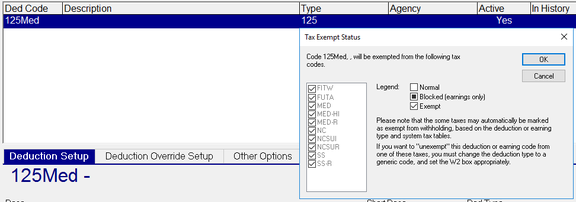
With deduction types that have taxability settings, the settings are automatically updated if new tax codes are added to the company.
The only time you should adjust the taxability settings is if you have a deduction that has taxability not handled by the existing deduction types. In these cases, use the options in the "Tax Exempt Status: box to control the taxability of the deduction.
When reviewing the deduction setup for a company, note the Taxability Box. If the taxability of the deduction code has been MANUALLY overridden, there will be an asterisk next to the word Taxability.

This does not happen when taxability is overridden by the Deduction Type.
Deduction Override Setup Sub Tab
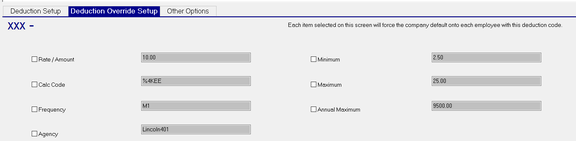
Use the options on this Sub Tab to force the default values of the field onto the employee's deduction.
If there is a value in any of the fields on this Sub Tab, it comes from the Deductions Setup Sub Tab from the field with the same name. The values in these fields can only be changed from the Deduction Setup Sub Tab.
Use the check box to force the value onto the employee deduction.

Other Options Sub Tab
This Sub Tab provides access to other features that can affect how the deduction code is handled.
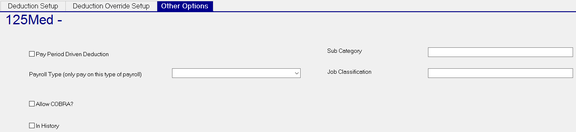
Pay Period Driven Deduction : Optional. Check if deduction is based on Period date instead of check date
Payroll Type (only pay on this type of payroll) : Optional. Deduction will only occur in the selected Payroll Type.
Allow COBRA? : Optional. Informational.
| Field Name | Information |
|---|---|
| In History | This box is checked once the deduction code has been used in the payroll and recorded historically. |
| Sub Category | Optional. Free form field used to facilitate reporting and General Ledger. |
| Job Classification | Optional. Free form field used to facilitate reporting and General Ledger. |