Company Setup: Code Groups
Code Groups are a mechanism that allows the system to return numeric values based on the configuration of the Code Group. The numbers returned when using a Code Group are generated by any action that references the Code Group. They are not stored in the database.
Following are the ways Code Groups are used in RPD/RPO:
The basis for creation of a percentage based Calc Code(s).
As part of formulas in Calc Codes and Paycheck Scripting
Generate data in both Crystal and Report Writer Reports.
Creating a new Code Group
To create a Code Group, go to Company Setup > Code Groups.
Click the New (*) Button
In the "Enter id for new code group" Box, enter a code for your Code Group. (Keep it short). We will use 4KEE in our example.
Click OK.
Enter a Description: Ours will be "401(k) Eligible Earnings".
In the section titled "This code group will contain", select the option for Earnings.
The "Codes included in Group" will now list all the earnings codes for the company.
Click the check box for each earning you wish to include in the Cod Group.
There is a Check Box field called "Include new earnings/deductions or taxes". Do not check.
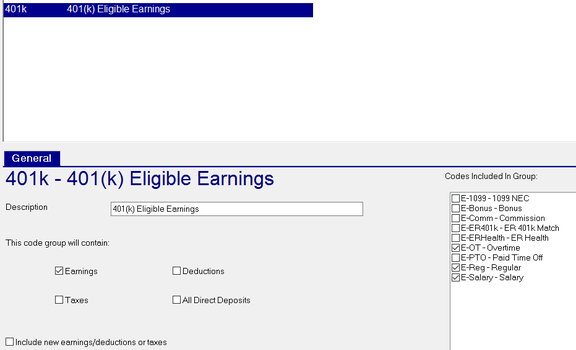
There are cases where a Code Group will need to include Earnings and Deductions.
To do so, click both Earnings and Deductions in the "This code group will contain:" section.
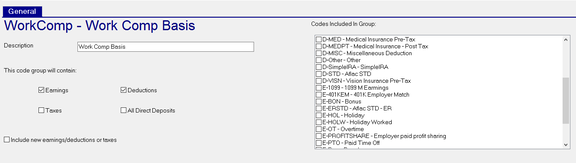
In our sample Code Group WorkComp, there are options for both Earning and Deduction codes.
Work Comp should be based on all worked earnings codes minus pre-tax Insurance deductions
Select the appropriate earning and deduction codes.
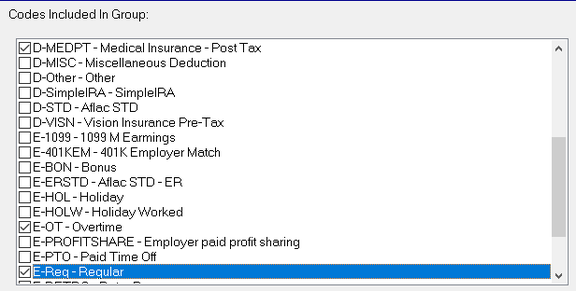
The Code Group logic will sum up all of the selected earnings codes (Hours and amounts) then subtract all of the selected deductions.
There is no limit to the number of Code Groups that can be setup on a company.
Uses within RPD/RPO
Code Groups can be used with C alc Codes, Paycheck Scripting and Report Writer.
When any of these functions reference a Code Group, the system dynamically calculates the numbers returned by the Code Group and makes it available to the function calling it
To see more information about the use of Calc Codes,
Click here
To see more information about Paycheck Scripting
Click here
Report Writer
Code Groups are used extensively in Report Writer reports built to report employee data.
You can access the data for a Code Group in any Report Writer Type that uses the ee {Employee Fields} collection.
Any Report Type that begins with "Employee" provides access to the ee {Employee Fields} collection.
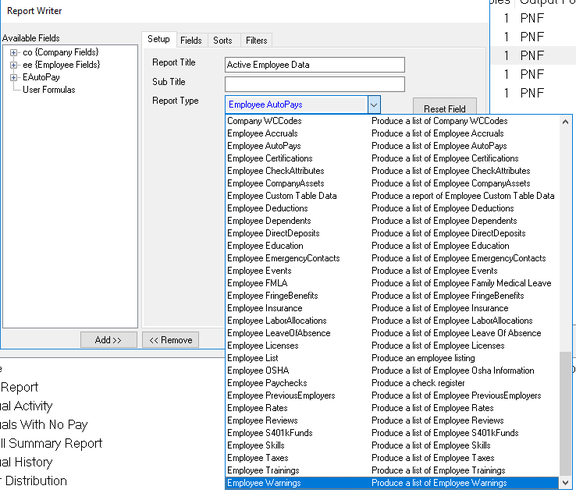
To access the Code Group, scroll down in the ee Collection past all of the employee fields until you see the item called CYTD (Current Year To Date).


Click the Plus (+) Sign next to CYTD to expose its contents. The first items displayed are th Code Groups setup on the company you are accessing. Next, click the Plus Sign next to the one of the listed Code Groups.

You now can select the Hours, Amount or Taxable Information for that Code Group.
You can also use the data from Code Groups in formulas. Our report requires a filed of Gross minus 401k. Create a formula like this:

You can also address this need by creating a new Code Group that includes the appropriate earnings and deduction codes to mathematically derive Gross minus 401k deductions.
This information applies to the CQTD (Current Quarter To Date), CMTD (Current Month To Date) and Current sets of data
For information regarding the use of the Basic Report Writer function in RPO,
click here
This article uses RPO screenshots.
In RPD, the Report Writer function uses the same logic as the Basic Report Writer in RPO. The screens, however, are a bit different.
For information regarding the use of the Advanced Report Writer function in RPO,
click here
Advanced Report Writer is only available in RPO.