Company Setup: Calendar
Historically, the Calendar contains a record of every payroll that has been processed for the client.
The calendar also contains a record for each scheduled payroll for the next twelve calendar months.
Each time a payroll is processed, the calendar record for that payroll becomes a historical entry.
During the payroll processing, a future calendar record is generated, ensuring that each company has the twelve month of calendar entries mentioned above.
The new calendar records are generated using the settings found under the Calendar Schedule Setup found under the Company Icon.

For information about the Calendar Schedule Setup, click here .
To facilitate review of past and future entries, the records are grouped on the tab by the year of the check date. Use the Drop List to select the year to review. New years are automatically.
Working with the Calendar Tab
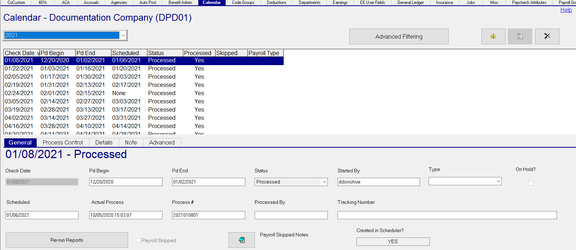
In the headers on the Calendar Display, there is an entry next to the word "Check Date". It looks like a capital V,

Check Dates are displayed with the old to new. Click on the "V" to reverse the sort order.
The V is then inverted to indicate the order in now newest to old.
Year : Use the Drop List to display calendar entries by Check Date Year.
The Drop List has an entry for each year with calendar records.

Advanced Filtering Button: Click the Advance Filtering Button to display filtering options for calendar records in the Year chosen in the Year field.

The "Calendar View Filtering" Dialogue Box is displayed.

Check Date : The Default is "between" 01/01 and 12/31 of the Year from the Year field.
Use the Drop List to see other date filtering options.

Use of any option other than "Between" causes the "To Date" Field to become unavailable.
Enter a date appropriate to the filter.
| Field Name | Information |
|---|---|
| Period Begin | Same options and functionality as the Check Date field. |
| Period End | Same options and functionality as the Check Date field. |
| Scheduled Date | Same options and functionality as the Check Date field. |
| Status | Select any of the available Status codes from the Drop List. |

Started By : Use the Drop List to filter by the user who started payroll. This includes both client and service bureau personnel.

Payroll Type : Use the Drop List to filter by the various Payroll Types used with the client. Payroll Types are derived from the settings found in the Payroll Run Types option on the Misc Tab under System > Setup.
New Record/New Version and Delete Buttons

New Button: Use the New (*) Button to add a new record. This is typically done when there is an off-cycle payroll (Bonus, adjustment). When the New (*) Button is clicked. the "Calendar Entry" Dialogue Box is displayed.

Complete the provided fields to build the necessary Calendar record.
| Field Name | Information |
|---|---|
| First Check Date | Default is today's date. Enter the appropriate check date. |
| Pay Period Begin | Default is today's date. Enter the appropriate Period Begin date. |
| Pay Period End | Default is today's date. Enter the appropriate Period End date. |
| Payroll Type | Optional. Select the Payroll Type from the Drop List. |
| Payroll Group | Optional. Select the appropriate Payroll Group from the Drop List. |
Note : Optional. Enter a note describing the payroll that is displayed in the Payroll Notes Box on the Start Payroll screen.

Note: Adding this information only creates the initial payroll information. In order to be able to use the newly created date. a payroll batch or batches need to be added. Adding a Batch is discussed in the section below for the Details Sub Tab.
New Version Button : This button is not available in the Calendar Tab
Delete Button : The Delete button allows you to delete entries from the Calendar.
Entries in the Scheduled, Open or Closed states can be deleted.
You cannot delete an entry if the payroll module is set to that date.
Records in the Queued, Processing, Processed. Packed, In Transit and Delivered states CANNOT be deleted.
General Sub Tab
The General Sub Tab displays data for the Check Date entry selected in the top section of the screen.
| Field Name | Information |
|---|---|
| Check Date | Check Date of the selected entry. The Check Date cannot be changed on this Sub tab. Use the "Change Check Date" option on the Advanced Sub Tab to change an unprocessed check date. |
| Pd Begin | Period Begin Date for the Payroll. Can be changed from this Sub Tab if needed, |
| Pd End | Period End Date for the Payroll. Can be changed from this Sub Tab if needed, |
| Status | Indicates the state of the payroll for the selected the check date. |

The value in this field is automatically changed as the payroll moves through the payroll process. If the status is Packed, In Transit or Delivered, it has been manually set by service bureau personnel.
Started By : The User Name of the person who started the payroll.

Type : Optional. Set the Type value using the provided Drop List.

On Hold? : Optional. Indicates that the payroll in on hold or used to put the payroll on Hold. If you click the Check Box, the
"Calendar Hold Reason" Dialogue Box is displayed Enter information regarding the Hold reason in the Note field.

Enter a date in the Expected Resolution Date field, then click OK. The Hold reason information is added to the Notes Tab under Master Company Setup.
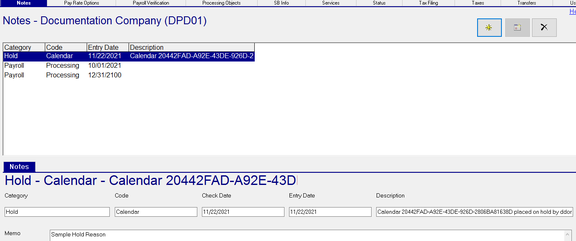
The Hold Option on the General Sub Tab DOES NOT set any of the Processing Holds on the Status Tab in Master Company Setup. However, if the payroll for the On Hold? Check Date is submitted, the submit Payroll job will error in the Job Queue with the following message.

To release the Payroll from the Hold, go to the correct check date and change the Status on the General Sub Tab to open.
This will reactivate the On Hold? field. Uncheck the box. Address and resolve the reason for the Hold.
Resubmit the Payroll from the Start Payroll screen or using the Submit option in the Tree View.
| Field Name | Information |
|---|---|
| Scheduled | Optional: The date the payroll is scheduled to be processed. This field is populated if the record was created by the Calendar Scheduler Setup function. |
| Actual Process | A Date/Timestamp entry populated by the system when the payroll for this check date entry is processed. |
| Process # | An extrapolation of the check date in YYYYmmDDnn format. YYY is th check date year. mm is the check date month. DD id the check date day. nn is the number of processes for that check date. The nn value starts at 01 and is incremented (02,03. 04, etc.) if additional payrolls for that check date are processed. |
| Processed By | Optional. Manual entry of the name of the person processing the payroll. |
| Tracking Number | Optional. Manual entry of the Tracking number of the package for this payroll. (UPS, FedEx, etc.) |
| Re-run Reports Button | allows for the reproduction of the reports (if any) produced with this payroll. Only availalbe for processed chank dates. Selecting the button will display the "ReadyPay - Reprint Reports" Dialogue Box. |

If reprinting reports, select the appropriate printer from the Drop List.
Uncheck any box that is relevant to the types of reports you are reproducing.
Payroll Skipped : Optional. Use to indicate the payroll for this check date was skipped. If a payroll is marked as "Skipped" and it is the last payroll of the month and/or quarter, Tax Deposits may need to be addressed. As a consequence. a "Generate Tax Deposits" workflow will be launched. See the "Generate Tax Deposits" explanation below under the Advance Sub Tab documentation.
Payroll Skipped Notes : Optional. Clicking the field will display the "Payroll Skipped Notes" Text Box.
Enter free form information as to why the payroll was skipped.
Created in Scheduler : Indicates if the check date entry was created by the Calendar Schedule Setup routine or if it was created manually.


Process Control Sub Tab
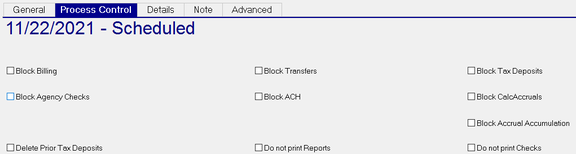
The options on this Sub Tab are used almost exclusively with "off cycle" payroll. An off-cycle payroll can be used to correct errors from the original payroll. process bonus/commission payments, correction entries for taxes and so on.
On the regularly scheduled payroll, these options are not used, except in very unusual circumstances.
Block Billing ; optional. Blocks billing on this check date entry.
| Field Name | Information |
|---|---|
| Block Agency Checks | Blocks the production of Agency Checks. |
| Delete Prior Tax Deposits | Use ONLY when running a second payroll with the same check date as the original AND where the tax deposits for the original deposits HAVE NO BEEN PAID. Exercise extreme caution when using this feature, |
| Block Transfers | Blocks any money movement via transfer settings (Master Company Setup > Transfers Tab). |
| Block ACH | Blocks ACH transactions. |
| Do not print Reports | Prevents printing of scheduled reports. |
| Block CalcAccruals | Blocks the CalcAccruals job from running when the payroll is processed. This means the accrual rules will not be processed. All accrual earning of hours/dollars, use, roll-over, and clearing will be ignored. |
| Block Accrual Accumulation | Blocks the earning of hours/dollars. Accrual hour/dollar use, clearing, and roll-over will still be processed. |
| Do not print Checks | Checks and vouchers will not be printed when the payroll is processed. Checks and vouchers can be reprinted |
Details Sub Tab
The Details Sub Tail contains various information regarding the individual batch or batches within the selected check date.
For check dates with a Yes in the "Created in Scheduler" field, the values in the following fields are based on the settings in the Calendar Schedule Setup. For manually entered check dates OR manually added batches, the fields are completed by the user. You can manually add a batch to a check date created by the Calendar Schedule Setup.

Except for the Batch field value, all of these fileds can be changed or turned on/off as needed prior to starting the payroll.
| Field Name | Information |
|---|---|
| Batch | Alphanumeric code for the batch. |
| Description | Full Description of the batch. This field is editable. |
| Period Begin | Period Begin Date for this batch. This field is editable. |
| Period End | Period End Date for this batch. This field is editable. |
| Base Auto Pay | Refers to the employee's Base Auto Pay (Hours or Salary) on the Rates Tab. |

If checked, the employee will be marked to be auto paid in Payroll Entry.

| Field Name | Information |
|---|---|
| Emp Auto Pays | If checked, the entries from the Employee's Auto Pays Tab will be applied to Payroll Entry. |
| Default Check Attrs | Use the Drop List to set the Check Attribute type to be used in this batch. |
| Approved By | Optional. Enter the name of the person who approved the batch. |
| Approved Date | Optional. Enter the date of when the batch was approved |
| Status | Status of the Batch. As the payroll moves through the process, the Status is automatically updated. |

Batch Frequency : Optional. Informational. Used for various reporting and auditing functions.
Note Sub Tab
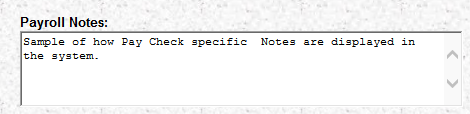
The Notes Sub Tab allows the user to enter notes that display at the bottom of the Start Payroll screen.
The Notes on this Sub Tab are one-time notes and are specific to the Check Date selected on the Calendar Tab. They will not be displayed on any other Check Date. If there is a need for the note to display on multiple Check Dates, use the options on the Notes Tab found in Master Company Setup. For information on the Notes tab under Master Company Setup, click here .
To add a note to Payroll Notes box at the bottom of the Start Payroll screen, select the desired Check date in the calendar.
Type the message in the free-form text box on the Note Sub Tab. Save the entry.

The Note will be displayed on the Start Payroll screen for the selected Check Date.
Advanced Sub Tab
The Advanced Sub Tb contains three functions: Change Check Date, Generate tax Deposits and Process Check Replacements.

These options are only used in certain circumstances.
Change Check Date : Use this option when the Check Date for the selected calendar entry needs to be changed,
A check date change can only be made to calendar entries in the Scheduled, Open or Closed States.
To change the Check Date, click the Change Check Date button.
The "Change Check Date" Dialogue Box is displayed.

New Date : The date the existing Check Date is to be changed to
Confirm : Reenter the date to ensure the correct entry has been made.
Auto Adjust Employee Rates, Taxes, Deductions, Earnings and Direct Deposits if they started on the original check date. (On large companies, this may take a while). Cannot auto-adjust to open or closed calendars. Optional. This option is only active on Scheduled Check Date entries.
| Field Name | Information |
|---|---|
| Period Dates are also changing, enter below | Optional. Check this box to change period dates. |
| Period Begin | Optional. Enter the new Period Begin Date. |
| Period End | Optional. Enter the new Period End Date. |
After making the necessary entries, click the Move Date box. The selected calendar record is updated accordingly.
Best Practice Recommendations for Check Date Changes
When doing a check date change, there may be tax considerations. For example: the employee has monthly tax deposits. The check date change is to the last check date of the month to a date in the next month. There may be tax liabilities that need to be addressed so they are addressed in the proper month.
When a check date change is needed, the timing of when the change is made is VERY IMPORTANT.
1. If the Payroll has not been started: Confirm that the payroll has NOT been started in RPD, and if applicable, RPO.
If not started, you may proceed with the check date change without issue.
2. If the Payroll has been started: The safest way to prevent issues is to put the payroll on a processing Hold. After it arrives in the Job Queue via sync, make the check date change then resubmit the Submit Payroll Job.
Generate Tax Deposits
This option to Generate Tax Deposits from this Sub Tab is no longer available. It has been replaced by a work flow related to use of the Skipped Payroll function.
The Generate Tax Deposits function is automatically activated when a skipped payroll is for the last payroll in a payroll month and/or quarter.
The following ReadyPay Dialogue Boxes are presented

If yes is selected, the next Dialogue Box is displayed

If Yes is selected, the next Dialogue Box is displayed.

If OK is selected, the system will run a GenTaxDep job and create the necessary Tax Deposits.

Process Check Replacements
The Process Check Replacement should be used ONLY when live payroll checks are lost in transit . It does nothing in regards to Direct Deposit vouchers that may be in the lost package . It simply reprints the lost checks for distribution.
When the "Process Check Replacements" button is clicked, the "Process Check Replacements" Dialogue is displayed,

The Check Date, Period Begin and Period End date from the original payroll will be used. This cannot be changed.
Replace Agency Checks - all Agencies should be marked to 'Suppress Reversals ': Use this option to recreate any Agency checks that may be in the lost package. Note the requirement regarding Suppress Reversals o the Agency Check setup.
To recreate the checks, click Process.
The checks will be reprinted.
The original checks will be voided.
A new entry will be added to the calendar with the same Check, Period Begin and Period End Dates as the original entry.
The new calendar entry will contain a VM batch.
The VM batch will include the voided entries for the original checks.
The payroll for the new calendar entry will need to be run to process the VM batch.