Company Setup: Calc Codes
Calc Codes are a function included in both RPD and RPO.
They are used to perform various calculations that are specific to an employee by assigning them to their scheduled deductions and/or earnings.
Calc Codes use VB Scripting functions to perform their calculations.
In cases where there is a calculation needed that applies to multiple employees, Calc Codes are not applicable.
In those cases, PayCheck Scripting would be used.
For more information about the Paycheck Scripting.
click here.
Types of Calc Codes
Standard Calc Codes
The following standard Calc Codes are included in RPD/RPO.
1. Flat : Entry is a Flat Amount. The entry in Rate/Amount field on the Employee > Deductions tab or Employee > Earnings tab is the exact dollar amount the employee elects to have deducted or used as an earnings.
2. Blank : Same as Flat
3. % : Use the % sign to indicate the deduction/earnings is a Percentage of Gross.
The entry in the Rate/Amount field on the Employee > Deductions tab is the percentage the employee elects to withhold.
On the Employee Earnings tab, this would calculate an earnings as a Percent of Gross.
4. %CodeGroupCode : There is logic in RPD/RPO that allows any Code Group to be used as the basis of a deduction (or earnings) calculation. i.e.: In some cases, you will find that not all earnings are considered when calculating a Retirement Plan deduction. This is known as Eligible Earnings. In these cases, you will need to create a Code Group and a Calc Code.
To create a Code Group, go to Company Setup > Code Groups.
Click the New (*) Button
In the "Enter id for new code group" Box, enter a code for your Code Group. (Keep it short).
We will use 4KEE in our example. Click OK.
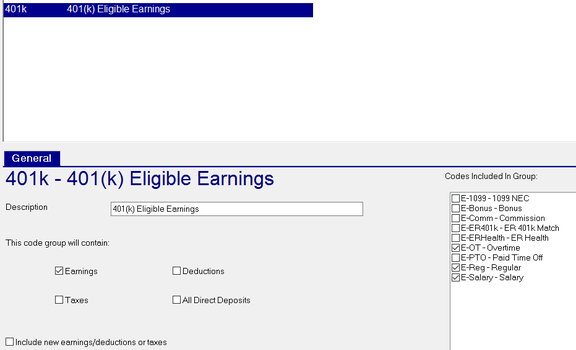
Enter a Description: Ours will be "401(k) Eligible Earnings".
In the section titled "This code group will contain", select the option for Earnings.
The "Codes included in Group" will now list all the earnings codes for the company.
Click the check box for each earning you wish to include.
There is a Check Box field called "Include new earnings/deductions or taxes". Do not check.
For more information about the setup and use of Code Groups
Click here.
Go to Company Setup > Deductions (or Company Setup > Earnings)
Click on the Drop Arrow next to the word Deductions (or Earnings on the Company Setup> Earnings tab)
The list of available Calc Codes is the same regardless of the tab.
Click the New (*) button.
In the "Enter new calculation code" box, enter %CodeGroupName.
Replace the CodeGroupName with the code of the Code Group you just created. Ours is 4KEE.
The entry in the "Enter new calculation code" box would be %4KEE. Click OK.
Enter a description in the Desc field. In our sample, we used Percent of "401k Eligible Earnings".
The Script Box MUST be left blank.
The new Code Group based Calc Code is now available to be assigned to employee deductions (Employee Deductions Tab) or employee earnings (Employee Earnings Tab/aka Fringe)


Custom Calc Codes
Calc Codes can be used to perform calculations that are beyond the capabilities of the % and %CodeGroupCode options discussed previously .
Custom Calc Codes are used for calculating Child Support Deductions, Tax Levies, Loans and other types of deductions where the requirements exceed the basic functionality found in RPD/RPO. The same is true with earnings based calculations.
Calc Codes use VB Scripting functions. Their setup assumes a basic familiarity with VB Scripting.
For more information about the Scripting Functions used with Calc Codes and Paycheck Scripting.
click here.
Sample Custom Calc Codes
There are numerous ways to address the requirements you may encounter when dealing with Child Support and Garnishment type deductions. Following are samples of Calc Codes to assist you with creating Calc Codes.
Use these as examples. You may choose to use these examples or alter them to meet your needs.
Child Support Calc Code Samples
Child Support Calc Codes
Child Support orders (IWOs) typically stipulate an amount per payroll with a cap on Disposable Income (DI = Gross minus Employee Taxes)
All custom Calc Codes begin with this line: SUB CalcCodeId ( index, det, detCode, hours, rate, amount )
The system uses this command to identify the deduction (or earnings) that the Calc Code applies to and other data relevant to the deduction.
Replace CalcCodeId with a logical identifier for the Calc Code, (CS for Child Support, Levy for Levy, etc).
The value for the amount field is derived from what is entered on the employee deduction in the Rate/Amount field.
Example of a typical Child Support calculation
SUB CS( index, det, detCode, hours, rate, amount ) CSAmount = Amount CSPercent = 0.50 DI = GetGross - GetTaxes - GetTotalAmount("Deds") CSMax = DI * CSPercent If CSAmount > CSMax Then CSAmount = CSMax SetAmount index, CSAmount End If END SUB
As with most Child Support deductions, the amount to withhold cannot exceed 50% of Disposable Income.
See the line that reads CSPercent = 0.50. Change if necessary per the IWO. (i.e.: 60% = 0.60)
Disposable Income (DI) is usually Employee Gross minus Employee Taxes.
Some Child Support orders allow the Disposable Income (DI) to be reduced by other deductions.
See the line that reads DI = GetGross - GetTaxes - GetTotalAmount("Deds")
This line subtracts Employee Taxes from Gross, AND if any are present , the deductions stipulated in the Code Group "Deds".
To ensure the deductions in the Code Group Deds are considered properly by the Calc Code, they must have a lower Priority setting than the actual Child Support deduction. The Priority can be set on the Company level Deduction setup tab or the Employee level Deductions Tab
If the employee has none of those deductions, the calculation is Gross minus Employee Taxes minus zero.
Example of an employee with multiple Multiple Child Support orders In cases where an employee has multiple child support orders, there are rules to consider when setting them up. Typically, the total of all the deductions cannot exceed 50% of Disposable Income (DI). In these cases, there needs to be a provision to prorate Disposable Income across the Child Support deductions so they are all funded. Assume the employee has two Child Support orders. The amount for one is $200.00 and the second is $100.00. The combined total to withhold for the two orders is $300.00. For the first, the percentage of the total to withhold is 66.6667% The second is 33.3333% The combined amount to withhold cannot exceed 50% of Disposable Income. If wages are sufficient, both deductions will be withheld in their entirety. If wages are insufficient, the following Calc Code will do the proration so both deductions have some amount applied to them. To adjust this calc Code to work, you must update the line CSCombinedAmt = with the total of all the Child Support deductions (in our example, that is 300.00) This Calc Code works on a limit of 50% of DI. If this is incorrect, update this section and replace .50 with the proper percentage If CSCombinedAmt > DI * .50 then CSAmount = DI * .50 * CSRatio End If After the Calc Code is added, go to the Employee Deductions tab. Add a deduction for each Child Support order. In the Calc Code field, select MultiCS from the Drop List. In the Rate/Amount field, enter the full amount to withhold. SUB MultCS( index, det, detCode, hours, rate, amount ) DI = GetGross - GetTaxes CSAmount = Amount CSCombinedAmt = 300.00 CSRatio = CSAmount / CSCombinedAmt If CSCombinedAmt > DI * .50 then CSAmount = DI * .50 * CSRatio End If SetAmount index, CSAmount End Sub
Samples of Levy and Tax Garnishment Calc Codes
Percent of Disposable Income Calc Code
The following Calc Code calculates 25% of Disposable Income.
Change the numeric value in the line " SetAmount index, DI * 0.25" as needed for different Percentages of DI
SUB Disp25( index, det, detCode, hours, rate, amount )
DI = GetGross - GetTaxes
SetAmount index, DI * 0.25
END SUB
Calc Code where withholding varies based on available DI
This Calc Code will withhold 25% of DI if DI is greater than 580.00
If DI is less than 580.00 and greater than 435.00, the withholding will be DI minus 435.00
If DI is less than 435.00, there is no withholding.
Adjust the percentage and levels, if necessary, according to the order.
SUB ADABW( index, det, detCode, hours, rate, amount ) DI = GetGross - GetTaxes Deduction = DI * .25 If DI < 580.00 then Deduction = DI - 435.00 End If If DI < 435.00 then Deduction = 0 End If SetAmount Index, Deduction End Sub
Calc Code where order stipulates the employee's net pay
In very rare situations, you will receive an order that stipulates a specific amount that the employee can take home
and the remainder of DI goes towards the garnishment.
The following Calc Code will handle this requirement.
At the company level, ensure there is a Code Group called Deds. If there are deductions that affect the calculation of DI, select those in the Code Group.
At the employee level, add a new deduction. Select the Calc Code Levy from the Drop List on the Calc Code field.
In the Rate/Amount field, enter the amount stipulated in the order as the amount the employee can take home.
SUB Levy( index, det, detCode, hours, rate, amount )
MaxTakeHome = Amount
DedExceptLevy = GetTotalAmount("Deds")
Gross = GetGross
Taxes = GetTaxes
NetBeforeLevy = Gross - Taxes - DedExceptLevy
If NetBeforeLevy <= MaxTakeHome then