Company Setup: Agencies
The Agencies Tab is used to setup payments to third parties. Third Parties can be individuals or organizations. These payments are typically based on employee deductions and earnings. An Agency payment can be in the form of a paper check or an electronic payment made via ACH.
Agencies are a list of recipients only. Other actions are required to associate an employee's earnings or deductions with the Agency payment itself.
Setting up Agencies
Click the New (*) Button in the upper right corner of the tab.
The "Enter new code for the agency" Dialogue Box is displayed.

Enter a code for the new Agency. Brevity is recommended. Click OK.
You are taken to the Agency Setup Sub Tab.
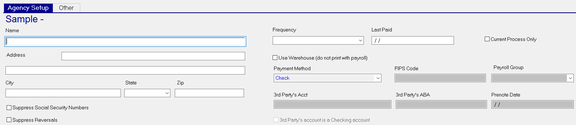
Agency Setup Sub Tab
| Field Name | Information |
|---|---|
| Name | Name of the third party receiving the funds for this agency |
| Address | Address of the third party |
| City | City of the address for the third party. |
| State | State of the address of the third party. Use the available Drop List to select the state code. |
| Zip | Zip of the address for the third party. |
| Suppress Social Security Numbers | Suppresses display of Social Security Numbers on the Agency Check stub. using this option is recommended. |
| Suppress Reversals | Check to prevent entries from being reversed when you process an ACH reversal. |
| Frequency | If applicable, select the proper frequency for this agency. Do not use any of the single digit Tax Frequency Codes. |
| Last Paid | Updated by the system during Payroll Processing |
| Current Process Only | Check to ensure the agency only includes activities form the current processing. If left unchecked, the Agency payment may include activities from previous payrolls. |
Use Warehouse (do not print with payroll) : If unchecked, the agency checks will print with the payroll output. If checked, the Agency check will not print with the payroll. Instead they are moved to the Agency Check Warehouse in the Agency Check Warehouse tab found in Systems > Operations. Use this feature if you mail Agency checks on behalf of your clients. At the end of each business day, the Agency checks are printed in bulk. Postage is applied and then sent out via US Mail.
Payment Method: Use the Drop List to assign the appropriate Payment Method.

FIPS Code : Becomes active with the ACH-Child Support Payment Method. The Federal Information Process Standard (FIPS) code refers to the child support agency receiving the payment. It is five characters when indicating both the state and county codes. It is seven characters when indicating state, county, and local codes.
Payroll Group : Only active when Payment Type is ACH-Child Support. Select the Payroll Group from the provided Drop List.
The following fields are active when using either of the ACH type payment methods.
3rd Party's Acct : The account number of the third party account
3rd Party's ABA : The Transit ABA number of the third party account
Prenote Date : Leave blank to prenote the bank account for this agency payment. Enter a prenote date of at least fourteen days prior to today to prevent prenoting
3rd Party's account is a Checking account : This box is checked by default. Uncheck if the bank account for the agency payment is a Savings account.
Other Sub Tab
The Other Sub Tab provides for additional information about the Agency setup.
This information is used by service bureaus doing Garnishment Work for the client.
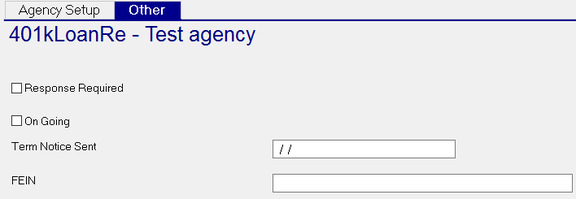
Response Required : Optional. Indicates a response is required by recipient.
On Going : Optional. Indicates continuing activity.
Term Notice Sent : Optional. Date the Term Notice was sent.
FEIN : Optional. The Federal Employer Identification Number of the agency.
Using the Agency Check Warehouse
The Agency Check Warehouse is found under System > Operations.
If you distribute Agency Checks to the agencies on behalf of your clients, consider using the Agency Check Warehouse.
Instead of printing with the payroll, the Agency checks go to the warehouse where they can be printed in bulk for distribution. This eliminates manually pulling the Agency Checks from the payroll output and putting them aside for handling later. It is less prone to error than a manual process.
As payrolls process, any Agency Check marked to go to the warehouse is stored there until are printed.
The Agency Check Warehouse looks and works like the ACH Warehouse.
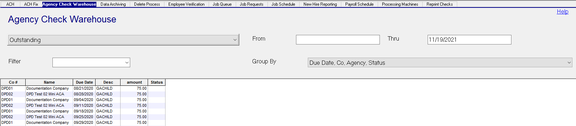
Outstanding : This is the default inclusion filter for the page. It displays any item that is "outstanding" as far as being processed. Use the Drop List on this field to view previously processed Agency Check activities.

Each time Agency Checks are printed, a new entry is added showing the date and time stamp of the activity.
Selecting a previous entry will display the Agency Checks processed on that date and time stamp.
From : Beginning date of the lookup. The Default is blank. This shows all outstanding Agency checks up to the Thru Date.
Thru : Ending date of the lookup. The Default is today plus two. Change the Thru date for activity past the next two days.

Filter : Use the Drop List for a list of Agency Check filters. Agency Check filters are found under the Agency Check Filters option in System > Setup > Misc. Create as many filters as needed to facilitate the printing of Agency Checks.
Group By : Use the Drop List to sort the Agency Checks.
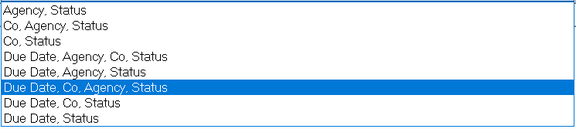
Explanation of The Grid

The Grid provides detail on each Agency Check entry. The contents of the Grid are controlled by the From > Thru Dates and the selected Filter (if any). The order of display is controlled by the Group By setting.
| Field Name | Information |
|---|---|
| Co | The Company Code |
| Name | The Company Name |
| Due Date | The Check Date of the Payroll where the Agency Check was produced. |
| Desc | The Agency Code from the Agency Check setup |
amount: Net of the check
Status : Use the Status field to put the entry on Hold. Hold Entries are not included when the Agency Checks are printed.
To put an entry on hold, highlight the line. Once highlighted, mouse click anywhere on the line to display the "Toggle Hold Status" option. Select the "Toggle Hold Status" line.

The status of the line is now set to "Hold".

To remove the hold, repeat the same steps used to put it on hold
NOTE: As the Agency Check is a printed document, there are no details for to display.
This is why the "Toggle Detail Mode" option is greyed out.
Check Properties : Click to display, and if needed, override the Agency Check printing configuration settings.
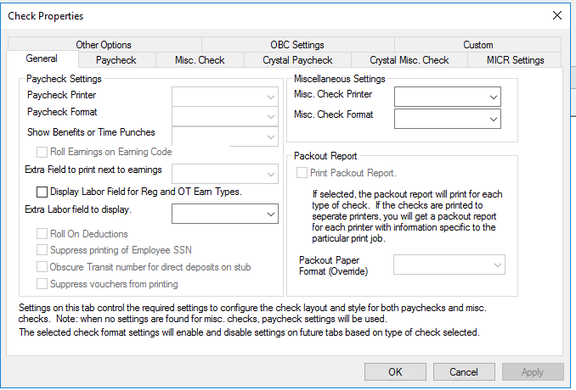
Printer : Use the Drop List to select the printer where the Agency Checks will print.
Print Checks : After ensuring all selection on the screen are valid, click to print the Agency Checks.