Company Setup: ACA
The ACA tab is used to configure the system for collection of data for and production of the various forms and filings required by the Affordable Care Act.
Before beginning, the client must have an ACA Service in place. This is done on the Master Company Setup > Services Tab.
There are two service levels available with the ACA Service.
Full Service : Clients that maintain Insurance plans and wish to have the system calculate form data based on their employees’ Insurance elections should utilize the ‘Full’ ACA Service Level.
Mini Service : The client enters data for ACA Tax Forms directly into the system. This can be done either employee by employee or using the on-board Bulk Editing Tool.
For information on Company Insurance Plans, click here.
General Information
The ACA Tab is comprised of three sections that are accessed using the Drop List in the upper left of the screen.

Each section has its own Sub Tab or Tabs.
ACA Periods Section
The section has one Sub Tab titled ACA Periods.
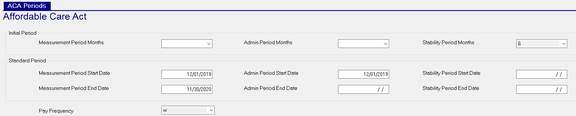
Configure this Sub tab for clients with the Full ACA Service.
Setup Section
This section has three Sub Tabs.

They are used to provide information critical to the production of the ACA Forms and the processing of Electronic Filings.
ACA Setup Sub Tab
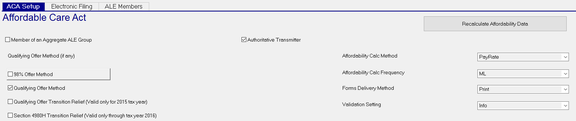
Populate the fields on this tab as appropriate to the client.
Electronic Filing Sub Tab
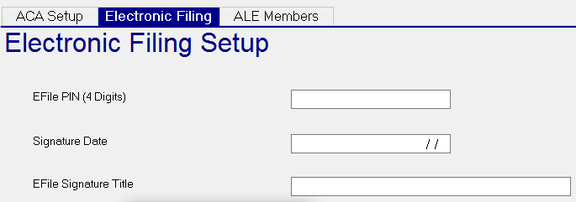
Complete the data on this tab for a client whose ACA Forms will be filed electronically by the service bureau.
ALE Members Sub Tab

An Aggregated ALE Group is a group of Applicable Large Employers (ALEs), that are viewed as a single employer under the health-care reform law. Use the New (*) to add companies to the Aggregate ALE group.
Use the Delete (X) to remove them.
Year End Form Section
The Year End Forms section provides historic information on any ACA forms for the client.
The screen is divided into two parts.
The upper area provides historical information on the production of the various ACA Forms.

The lower area of the screen is the ACA Forms Sub Tab.

Highlight an entry in upper section. The data displayed on the ACA Forms Sub Tab will be for that selected entry.
More Information
Use the following links to access detailed Instructions for ACA Setup and Processing.
For Step by Step instructions on the setup and use of the ACA functionality in ReadyPay, click here.
For an overview of ACA Processing in ReadyPay, click here.