Retirement Plan Deductions
Background
The Social Security Act, signed into law by President Franklin D. Roosevelt in 1935, created Social Security, a federal safety net for elderly, unemployed and disadvantaged Americans. The main stipulation of the original Social Security Act was to pay financial benefits to retirees over age 65 based on lifetime payroll tax contributions. At that time, it was believed most workers would not live for an extended period after retirement and thus would receive Social Security benefits for a minimal amount of time. As time passed, life expectancy rose significantly. This led to concerns about the funding of Social Security Benefits as more beneficiaries were receiving benefits for much longer timeframes. As this concern grew, the concept of Retirement Plans arose to allow individuals a way to save for retirement and reduce their dependence on Social Security.
The first Retirement Plan Type (403B) was introduced in 1958. A 403(b) plan is a retirement account available to individuals who work in public education, employees of certain 501(c)(3) tax-exempt organizations, and ministers.
In 1974, Congress passed the Employee Retirement Income Security Act (ERISA) that, among many other provisions, provided for the implementation of the Individual Retirement Arrangement (IRA). The primary goal of the IRA was to provide a tax-advantaged retirement plan to employees of businesses that were unable to provide a Pension Plan. Pension Plans, introduced in the late 1800s, were the predecessor of the Retirement Plans we know today.
Under The Revenue Act of 1978, 401(k) Plans were introduced. This allows for pre-tax employee contributions to such plans (known as elective deferrals).
Since that time, significant legislature has refined the nature of Retirement Plans. Consequently, a number of different Retirement Plan types have been introduced, as well as significant rules dictating who can participate, how much they can contribute and so on.
This article covers ReadyPay's legacy deduction-only method for managing retirement plans. For the new Plans method on the Retirement tab, see ReadyPay Retirement – 2026.
Overview
While there are others, the most commonly used Retirement Plan Types are:
- 403(b) Plans
- IRAs (Individual Retirement Arrangements)
- 401(k) Plans
- SEP Plans (Simplified Employee Pension)
- Simple 401(k)
- Simple IRA
- 457 Plans
- Roth IRAs (Post-Tax)
- Roth 401(k) (Post-Tax)
All Retirement Plans have guidelines that limit the amount an employee can contribute. These limits are published each year by the IRS. For plans that allow an Employer Contribution, there is typically a Total Contribution Limit which limits the total of the employee and employer contributions. These limits apply to contributions across Retirement Plan types. For example: an employee has both traditional and ROTH 401(k) deferrals. The total of those deferrals is capped by the Employee Deferral Limit for 401(k) plans for the particular year.
Most plans have what is known as a Catch-Up amount. Catch-Up amounts allow employees over age 50 to contribute more each year than those under 50. The Catch-Up amount is also determined by the IRS and can change each year. The Catch-Up amount also affects the Total Contribution Limit for employees over age 50.
If an employee does not have a birth date on file, the system assumes they are under 50 and applies the limits accordingly. Employees over 50 are automatically allowed to reach the Catch Up Limit.
Company Setup
Retirement Plan deferrals are handled as Deductions in RPD/RPO. To add a new Retirement Plan deduction, go to Company Setup > Deductions. Click the New (*) Button. Provide a code in the "Enter new deduction code" Box. Click OK.
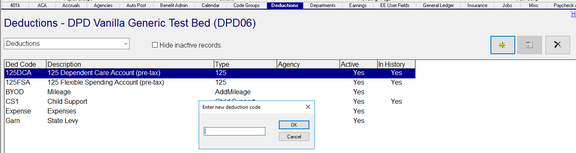
Our sample deduction code will be 401k.
Enter an appropriate description and short description.
Select the Ded Type 401k from the Drop List on the Ded Type Field.
You will choose the appropriate Ded Type that applies to the type of retirement Plan you are setting up.
This will automatically set the value in the W2 Field to 12D.

Taxability will automatically be set as defined in the system. There is no need to adjust it.
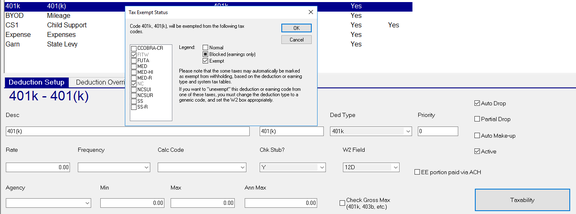
When new tax codes are added to the company, the deduction will be automatically updated to reflect the taxability of those new codes.
Use of the Ded Type 401k also sets logic for controlling the age based yearly contribution limits. 401(k) Plans have contribution limits that vary based on age. Employees over 50 are allowed a higher contribution limit than those under 50. This is known as Employee Catch-Up Contributions. Other Retirement Types that allow Employee Catch-Up Contributions are traditional IRA, Roth IRA, SIMPLE IRA, SIMPLE 401(k), 403(b), and 457(b)s.
For a detailed explanation of all the Ded Types available in RPD/RPO, see Deduction Types Overview.
The remaining fields on the Deduction setup tab(s) should be set up if applicable.
- Rate: Typically not used as contribution amounts and/or percentages vary by employee.
- Frequency: Typically blank as Retirement Plan deductions are, in almost all cases, taken with every pay check.
- Calc Code**: May be set but may not apply to all employee deduction setups.
- Chk Stub?: Set to Yes (Y).
- W2Field: Set by Ded Type.
- Agency: May be used if the deductions are to be paid to a third party.
- Min: Typically not used with Retirement Plan Deductions.
- Max: Same as Min.
- Ann Max: There is no need to enter anything in the Ann Max field. The system will automatically manage the employee contribution limits as described above. This is true even in cases where the employee has multiple deductions for the same Plan Type (e.g., 401k and Roth 401k are both part of the 401k Plan Type).
- Check Gross Max (401k, 401b, etc.): This sets the deduction to follow the Federal Wage Base Limits for that Retirement Plan Type. The Federal Wage Base Limits may vary from year to year and can limit the employee's contribution in certain cases. Federal Wage Base Limits are controlled by the software. Nothing need be done by the user in this regard.
Employee Setup
Adding New Retirement Plan Deductions
To add a new Retirement Plan Deduction to an employee, go to Employee > Deductions.
Click the New (*) Button. Select the deduction code from the list of available codes.

Complete the following fields as appropriate for the employee's deduction.
- Calc Code**: If applicable, select the appropriate Calc Code from the Drop List. Calc Codes provide logic options as to how the deduction can be calculated. Calc Codes work in conjunction with the Rate/Amount field. See the section below called ** More about Calc Codes and Retirement Plan Deductions.
- Rate/Amount: If the employee wants a specific amount withheld, enter it here. The Calc Code field can be blank or set to "Flat". If the employee wants a percentage of earnings withheld, enter the percentage here and set the appropriate Calc Code field value.
- Frequency: As Retirement Plan deductions are typically withheld from every paycheck, this field should be left Blank.
- Last Taken: System supplied date showing when the deduction was last taken.
- Start Date: Date the deduction should start. Typical default is the check date in Payroll.
- End Date: Date the deduction should end. Default is usually 12/31/2100.
- Retro: Not relevant to Retirement Plan deductions.
- Agency: Agency Check assignment (if any) for this Retirement Plan deduction.
- Misc Information: May contain account number or other data relevant to the deduction.
- Goal: Not relevant to Retirement Plan deductions.
- Paid: Not relevant to Retirement Plan deductions.
- Minimum: Not relevant to Retirement Plan deductions.
- Maximum: Not relevant to Retirement Plan deductions.
- Ytd Max: Do not enter anything here otherwise it will override the system level YTD Limit values.
- 3rd Party's Acct: Use if company is using the DirDep-Ded Transfer Type.
- 3rd Party's ABA: Use if company is using the DirDep-Ded Transfer Type.
- Prenote Date: Use if company is using the DirDep-Ded Transfer Type.
- Priority: Enter a numeric value to change the order in which the employee's deductions are taken.
Changing Existing Retirement Plan Deductions
Periodically, employees may wish to change the amount of their Retirement Plan Contribution.
To do this, go to Employee Maintenance > Deductions.
Select the deduction where the contribution is to be changed.
Update the End Date field to be one day prior to when the new contribution amount goes in effect.
Click the New (*) button and select the appropriate Retirement Plan code from the available codes.
Update the fields in the grid based on the employee's new deduction amount.
The Start Date must be updated to one day after the end date of the end-dated contribution.
** More about Calc Codes and Retirement Plan Deductions
The Calc Codes most commonly used with Retirement Plan Deductions are:
- Blank: Blank = Flat Amount. The entry in Rate/Amount is the exact dollar amount the employee elects to have withheld.
- Flat: Same as Blank.
- % — Use the % sign to indicate the deduction is a Percentage of Gross. The entry in the Rate/Amount field is the percentage the employee elects to have withheld.
The Blank, Flat and % Calc Code options are included in RPD and RPO.
- %CodeGroupName: There is logic in RPD/RPO that allows any code group to be used as the basis of a deduction (or earnings) calculation. In some cases, you will find that not all earnings are considered when calculating a Retirement Plan deduction. This is known as Eligible Earnings. In these cases, you will need to create a Code Group and a Calc Code.
To create a Code Group, go to Company Setup > Code Groups.
Click the New (*) Button.
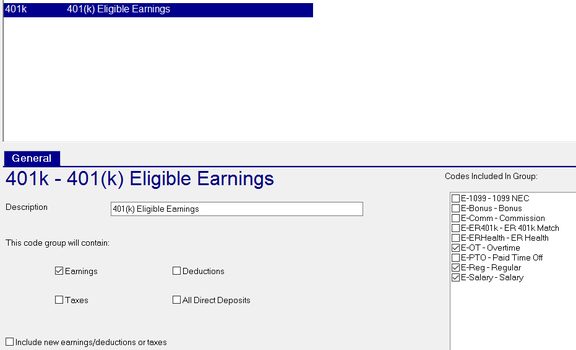
In the "Enter id for new code group" Box, enter a name for your Code Group (keep it short). We will use 4KEE in our example.
Click OK.
Enter a Description: ours will be "401(k) Eligible Earnings".
In the section titled "This code group will contain", select the option for Earnings.
The "Codes included in Group" will now list all the earnings codes for the company.
Click the check box for each earning you wish to include.
There is a Check Box field called "Include new earnings/deductions or taxes". Do not check.
Go to Company Setup > Deductions (or Company Setup > Earnings).
Click on the Drop Arrow next to the word Deductions (or Earnings if on the Company Setup > Earnings tab).
The list of available Calc Codes is the same regardless of the tab.
Click the New (*) button. In the "Enter new calculation code" box, enter
%CodeGroupName.
Replace the CodeGroupName with the name of the Code Group you just created. Ours is 4KEE.
The entry in the "Enter new calculation code" box would be %4KEE. Click
OK.
Enter a description in the Desc field. In our sample, we used Percent of "401k Eligible Earnings".
The Script Box MUST be left blank.
The new Code Group based Calc Code is now available to be assigned to employee deductions and/or earnings.
