Company Setup: Client G/L 4 — Testing and Changing the G/L Setup
Overview
It is recommended that every template company used to create new company codes have at least one default G/L rule in place. The presence of a G/L Rule will trigger the running of a CalcGL job with each live payroll processing.
This allows for the G/L setup to be added retroactively after the company goes live.
There are no CalcGL Jobs created for companies in Setup mode. See the section below titled "Calc GL jobs for companies in Conversion (Payrolls are Setup runs)" for instructions.
Testing the G/L Setup
These instructions are applicable to a newly coded G/L setup or one where changes are being made to an existing one.
Once you have completed your G/L rule coding, go to System > Operations > Job Queue.
Use the Co Drop List to select the company being maintained.

Use the Job Class Drop List to select the CalcGL jobs for the company being maintained.

Select the Job Filter Drop List.

Change to option to Blank - All Jobs.
This combination of settings will show you all the CalcGL jobs that have been processed for the company.
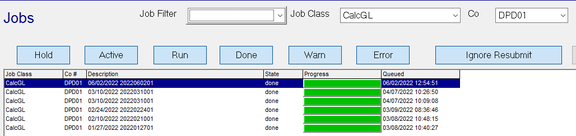
Select the entry on top. This is their most recent payroll.
Select the Resubmit Button.
Select the Resubmit Button in the Resubmit Job Dialogue Box.

Once the job has been resubmitted, change the Job Filter from blank to Today.
The CalcGL job you resubmitted will be listed.
If the State field reads Done, this means the system found no coding errors in your GL Rules.
This does not mean your G/L is correct. You will need to run G/L reports to determine if it is correct.
You can make G/L Rule changes and resubmit the CalcGL job as many times as needed.
If there are coding errors in your G/L Rule setup, the CalcGL job will end in an Error state.
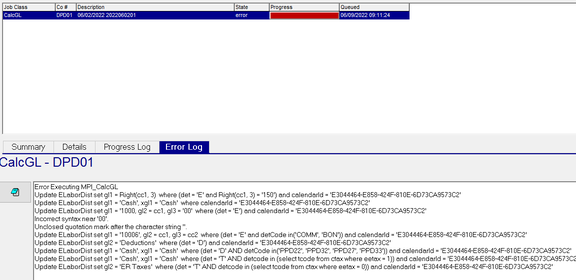
Go to the Error Log Tab and review the provided information. Typically, there will be a notation of "Incorrect syntax". The entry above it will identify the G/L Rule with a coding issue.
In these cases, correct the G/L Rule then resubmit the error CalcGL job.
Once the errors are addressed and the CalcGL job completes in a Done state, confirm the G/L is correct.
Continue making corrections as necessary.
Once the G/L is correct, you can resubmit other CalcGL jobs for other check dates.
Calc GL jobs for companies in Conversion (Payrolls are Setup runs)
There are no CalcGL Jobs created for payrolls run for companies in Setup mode.
You need to add one for each calendarid of each setup run.
In the Job queue, click the New ( * ) Button to display the Create New Job Dialogue Box.
Select CalcGL from the Job Class Drop List.
Select the company code from the Company Drop List.
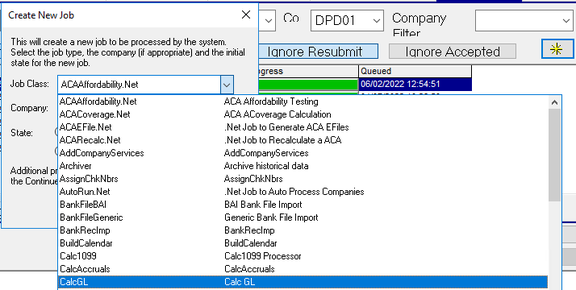
Click Continue.
A blank Job Properties Box will be displayed.

You need to enter the three items shown in the following screen shot.
Spelling and capitalization matter.
Use a sql query to obtain the calendarid. Cut and paste it from the returned values of the query.
Update the query with your code and check date:
select calendarid from ccalendar where co = 'DPD01' and checkdate = '2022-01-27'
If you do not have sql access, use Report Writer to obtain the information. Use the Company Calendar Report Type.

Select the fields shown in the example.

Enter the required data and click OK.

The CalcGL job will run.
Now that it's in the job queue, you can resubmit it as you make additions or changes to your GL Rules.
If you have multiple check dates in the Setup period needing the CalcGL Job, repeat this process for each.