Company Setup: Client G/L 1 — Introduction

Navigation: Go to the Company > Company Setup > General Ledger tab to begin the setup of a client General Ledger.
General Ledger Tab
The General Ledger tab is comprised of three sub-tabs: Accounts, Rules and Setup.

Accounts Sub-Tab

Use the Accounts function to create text values that describe an account. These descriptions can be used in the various G/L reports. Enter alpha/numeric values that can be displayed on the various General Ledger reports included in the system. An account can have from one up to six sections. How many sections are used is determined by the instructions found in the Rules section. Each section allows for fifty (50) characters.
Changes to the Accounts sub-tab are applied to reports immediately.
Entries on this Sub-Tab are listed in the order they are entered. If an entry is duplicated in the Accounts Sub-Tab, it will cause duplication of data on certain G/L reports.
Rules Sub-Tab
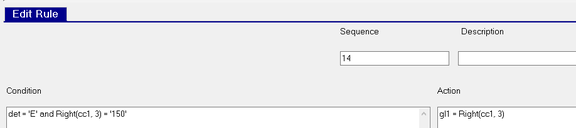
General Ledger Rules are the instructions that control how the system builds the data used for General Ledger reporting and output files.
Each rule is comprised of four components:
- Sequence: A numeric value that defines the order in which the rules are applied.
- Description: Identifies what the rule is used for (Optional).
- Condition: Defines the data where the action will be applied. Conditions can be broad stroke or very concise in defining what data is affected. The Condition field can be blank.
- Action: Defines what to do to the data defined in the Condition.
Since Actions are applied in Sequence order, be sure you order the broad stroke actions before the very specific actions.
Changes to the Rules are not effective immediately. In order for them to be applied to G/L reports, you must run a CalcGL job to have the system apply the changes.
This section of the General Ledger setup is very feature rich and discussed in its own Solutions article titled Client General Ledger — Coding a G/L.
Setup Sub-Tab

Use Setup to define the structure of the G/L accounts. As noted in the Accounts discussion, an account can have up to six sections. The alpha/numeric values entered here are displayed on certain General Ledger reports. They also are used as the descriptions for the six sections found on the Accounts sub-tab.
Changes to the Setup sub-tab are applied to the Accounts sub-tab and reports immediately.
Getting Started
- Obtain the client's Chart of Accounts and a sample of their G/L Reports. If the client imports data into an Accounting software, obtain a copy of the file requirements.
- Review the company setup and compare to the Chart of Accounts and their sample G/L. Ensure you have accounted for all earnings, deduction and tax codes. Also review company structure in relation to the G/L.
- Determine how the accounts will be structured in the G/L rules. Use this information to populate the Setup and Accounts sub-tabs.
Examples
The client's G/L accounts are divided into three sections: Account Number, Branch and Department. In the G/L Rules, these will be defined as Gl1, Gl2 and Gl3.
On the Setup Tab, enter Account Number in the GL1 field. GL2 will read Branch and GL3 will be Department.
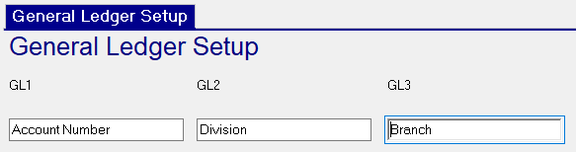
These entries are used on the various General Ledger reports found in the system.
- GL Journal Entries Report — RP_500_0801

- GL Rules Report — RP_100_2102

These entries also populate the Field Headings found on the Account Sub-Tab.

It is best to use abbreviations when populating these fields. This improves the visual display on reports and the screen.
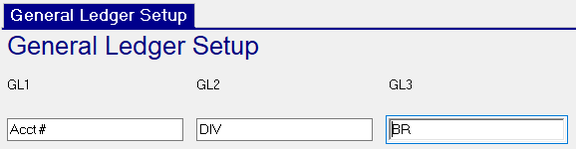
Sample from GL Journal Entries.

Adding Account Descriptions
In the sample below, note the account is 1000-6100-00.

1000 is the primary account number. 6100 is the Division and 00 is the Branch.
You can add Account Descriptions by setting them up on the Accounts Sub Tab.
First, click the new ( * ) button.
Enter 1000 in Acct #, 6100 in DIV and 00 in BR. Ignore the dashes unless they are hard coded into the GL Rules.
Enter the Account description in the description field.

Note the Description on the report.
