Rate Effective Date Options
Applies to: version 3.30.0.688 and higher
The Rate Effective Date Options page, found in Master Company | Pay Rate Options, allows for establishing how the default Start Date is determined when adding new entries of each type listed on the page to employees (or to companies as in the case of the Worker's Comp Rates setting). This function was previously handled by a single Employee Start Date Options setting on the Master Company | Defaults page — this setting will be copied into each new option. You can click on each screen shot below to view a larger image in a separate browser tab or window.
The available settings in each drop list also drive how each type is reviewed for inclusion in the payroll check calculation. This allows for calculations to be performed by looking at periods of time other than the check date. Because the new settings will drive both the Start Date for new employee record entries AND how each entry type is used in payroll, you should review each company to ensure the setting is appropriate for their situation. The new settings are stored in the following columns within the CInfo table in your database: startDateFieldRates, startDateFieldEarnings, startDateFieldDeductions, startDateFieldAccruals, startDateFieldInsurance, startDateFieldLaborAllocation, startDateFieldPrevailingWage, startDateFieldWorkersComp. For example, when a company's Defaults page had 'Hire Date' as the option before upgrading, each setting on the Rate Effective Date Options page will also have Hire Date. In subsequent payrolls, hours being paid by Pay Rates would be looking for the rate at Hire Date. There is a high probability that most employees have a different rate than that at their Hire Date, and as such, would warrant a change to the Rates settings.
If the Employee Start Date Options field on Master Company | Defaults was left empty, you will be asked to 'Enable new rate functionality' as shown below. The Defaults page will continue to be used for Direct Deposits and Taxes which are always driven by check date.

Settings Explained
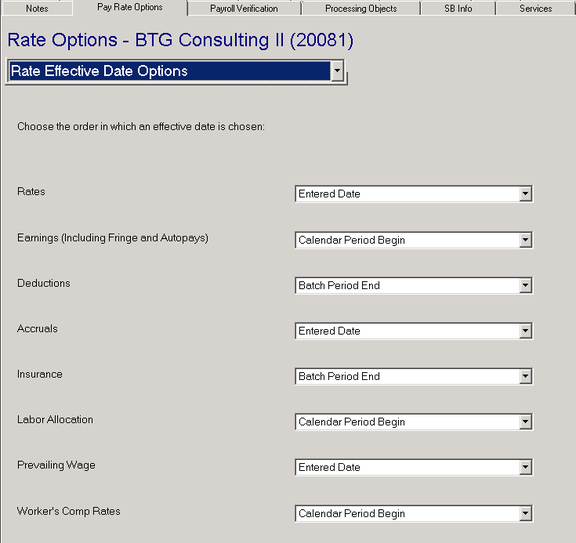
Because the settings on the page affect both the employee record and the payroll calculation, their uses will be defined separately. Keep in mind some types, like Insurance, may have their own date settings that should also be reviewed when utilizing this feature.
Adding New Payroll Items to Employees
For example, a company has a check date of 11/20 with a period and single batch covering 11/1 to 11/15. Each available setting would determine the following Start Dates:
- Check Date — 11/20 will be auto-filled as the Start Date of the item being added.
- Calendar Period Begin — 11/1 will be auto-filled as the Start Date of the item being added.
- Batch Period Begin — 11/1 will be auto-filled as the Start Date of the item being added.
- Batch Period End — 11/15 will be auto-filled as the Start Date of the item being added.
- Entered Date — The actual/computer date the entry is being added is auto-filled as the Start Date of the item being added.
- Hire Date — The Hire Date of the employee is auto-filled as the Start Date of the item being added.
- Blank — Do not use the new Rate Effective Date option for this selection. Making a blank selection will make ReadyPay work "the old way" by using the setting on the defaults tab.
Changing any of these settings will take effect the next time a payroll is started. If you change these settings after the company's check date has been started, you must restart the payroll in order for the new settings to take effect.
Multiple batches will deploy filtering capabilities to determine the correct date to use.
How Settings Are Used in Payroll
Before you choose a setting for an item, keep in mind that the settings also determine how each item type is reviewed within the payroll calculation. When using:
- Check Date — This setting looks for all employee records where the current Check Date falls on/between the Start and End Dates of the type (this is the usual default — most employers will say "take any deductions or use the pay rates in effect at the time of the check date").
- Calendar Period Begin, Batch Period Begin, Batch Period End — These settings look for all employee records where the selected Period Begin or End Date falls on/between the Start and End Dates of the type (this is used by employers who want paychecks to be calculated based on rates or deductions in effect during the period worked and not the date of payment (check date) which usually occurs later).
- Hire Date — This setting looks for all employee records where the Hire Date of the employee falls on/between the Start and End Dates of the type (this is extremely rare).
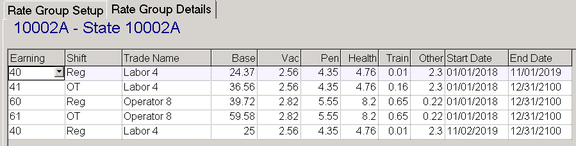
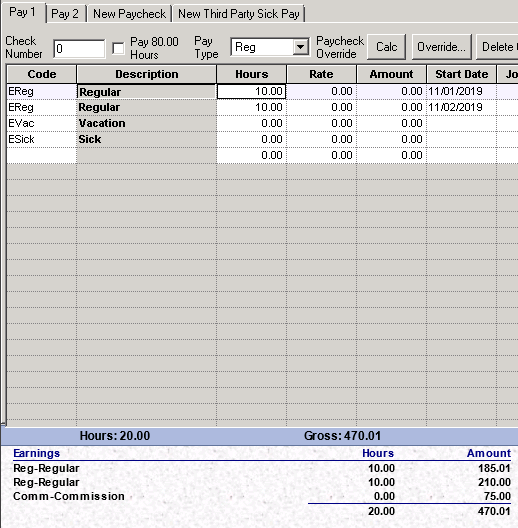
The wildcard setting is Entered Date. When this setting is used for all types (other than Rates and Prevailing Wages) the Check Date is used because using actual/computer date doesn't make sense within the payroll calculation. For Rates and Prevailing Wage, Entered Date can be used to pay different rates for different days of the pay period by entering Start Dates into payroll entry. Using our 11/1 to 11/15 example pay period, the below employee has two different pay rates falling within the pay period.

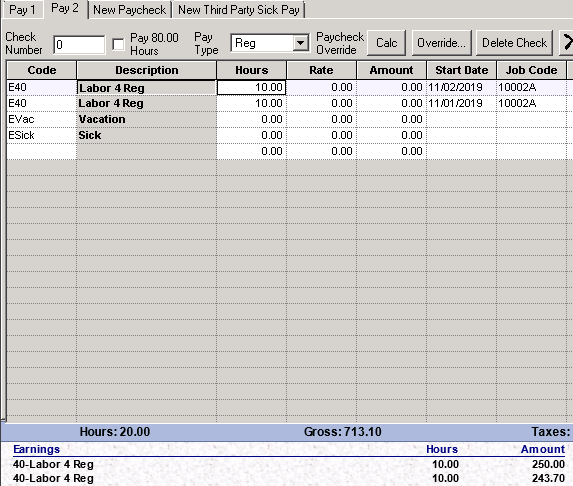
When hours are entered in payroll, lines are added in the pay grid for the hours worked on each day, with Start Dates entered. The system, based on the setting Entered Date, selects the appropriate rate to be used per day. As shown in the check calculation, the two lines of Reg pay calculate based on the rates in effect for the entered date.
When entering Prevailing Wages and entering Start Dates in the pay grid, the dates within Rate Group Details will be reviewed in the same way. Each line item will be calculated separately by reviewing the dates in effect.